

You don’t need 40 YouTube tools. You need one good tool for each job a video goes through: planning it, recording it, editing it, packaging it, publishing it and turning it into Shorts. Pick one per job and you can stop paying for three apps that do the same thing.
I’m Neal Schaffer. I host a podcast with more than 400 episodes, and I teach social media marketing to executives at Rutgers Business School. In Digital Threads I make the case that YouTube is a search engine in its own right. That makes the tools around it worth getting right.
If you want the size of the opportunity first, I keep video marketing statistics and the latest YouTube statistics updated on my blog. Tools make the work faster, but the strategy comes first, and my video marketing tips start there.
Key Takeaways
✅ Pick one tool per job. Planning, recording, editing, packaging, publishing and repurposing each need one tool, and YouTube Studio covers part of that list for free.
✅ For keyword research I use VidIQ’s free tools, and in my opinion VidIQ is the best keyword research available for YouTube. YouTube’s own search autosuggest is the free backup.
✅ YouTube now tests thumbnails for you. Test & Compare rotates up to three titles or thumbnails and keeps the one with the highest watch time.
✅ YouTube Studio can trim and cut a video after upload without changing its URL. You only need a separate editor once you want transitions, titles or templates.
✅ For Shorts I use OpusClip for both clipping and captions. When I tested short-form clipping tools head to head for my podcast in 2024, it was the only one that cleared every requirement I had.
Every YouTube video goes through six jobs: planning, recording, editing, packaging, publishing and repurposing, and you need one tool for each. YouTube Studio is free and already handles part of publishing, including the ability to trim an uploaded video without changing its URL. The third-party tools below fill the gaps Studio leaves.
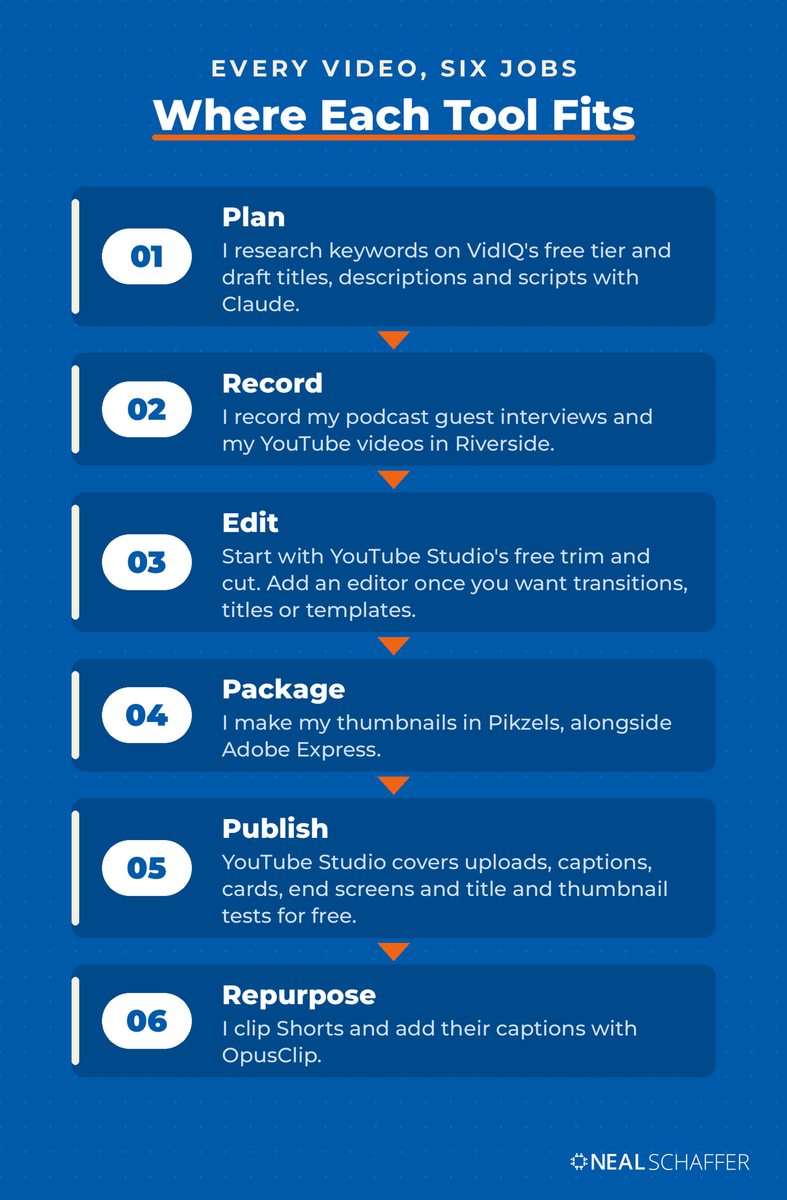
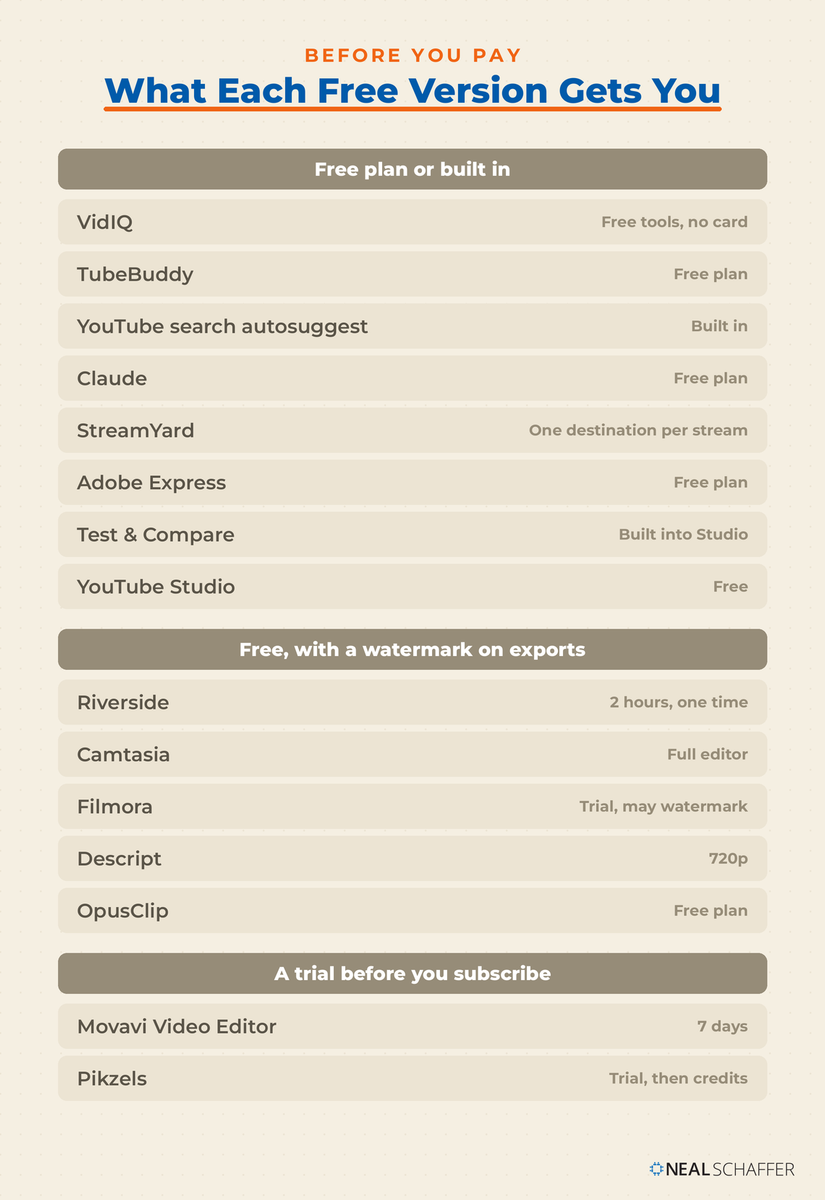
Start with the free option in each row. Pay only when a job outgrows it, because a paid tool you open once a month is probably the most expensive kind.
| Tool | Job | Free option | Who it’s for |
|---|---|---|---|
| VidIQ | Plan: keywords and video ideas | Free tools, no card needed | Anyone choosing video topics |
| TubeBuddy | Plan and manage: SEO, bulk edits | Free plan | Channels with a back catalog |
| YouTube search autosuggest | Plan: how viewers phrase a topic | Free, built in | Every channel |
| Claude | Plan: titles, descriptions, scripts | Free plan | Creators who write their own scripts |
| Riverside | Record interviews and talking-head video | Free plan, 2 hours one-time, watermarked | Podcasters and interview shows |
| StreamYard | Livestream with guests | Free plan, one destination | Live shows with guests |
| Camtasia | Record your screen and edit | Free download, watermarked exports | Tutorials and software demos |
| Movavi Video Editor | Edit with templates | Free download, 7-day subscription trial | Occasional editors |
| Filmora | Edit footage you shot | Free trial, watermarked exports | Beginners testing an editor |
| Descript | Edit by editing a transcript | Free plan, 720p with watermark | Talking-head videos |
| Adobe Express | Thumbnails and channel art | Free plan | Brand-consistent thumbnails |
| Pikzels | AI thumbnail concepts | Free trial | Fast thumbnail ideas |
| Test & Compare | Title and thumbnail testing | Free, built in | Channels with steady impressions |
| YouTube Studio | Publish, trim, caption, analyze | Free | Every channel |
| OpusClip | Shorts and captions | Free plan, watermarked | Repurposing long videos |
Planning comes first, since every later job depends on knowing what the video is about.
If you need keyword and topic research, use VidIQ’s free YouTube tools first, then check the phrasing against YouTube’s search autosuggest. Add TubeBuddy once you’re managing a back catalog, and use Claude to draft titles, descriptions and scripts from that research. A video built on the wrong topic is probably hard to rescue with a better thumbnail.
VidIQ
VidIQ’s free tools page includes a keyword generator, a title analyzer, a video ideas generator and a niche finder. VidIQ says some tools add features on a paid plan, while the core functionality stays free. A few work without an account, and the rest need a free one.
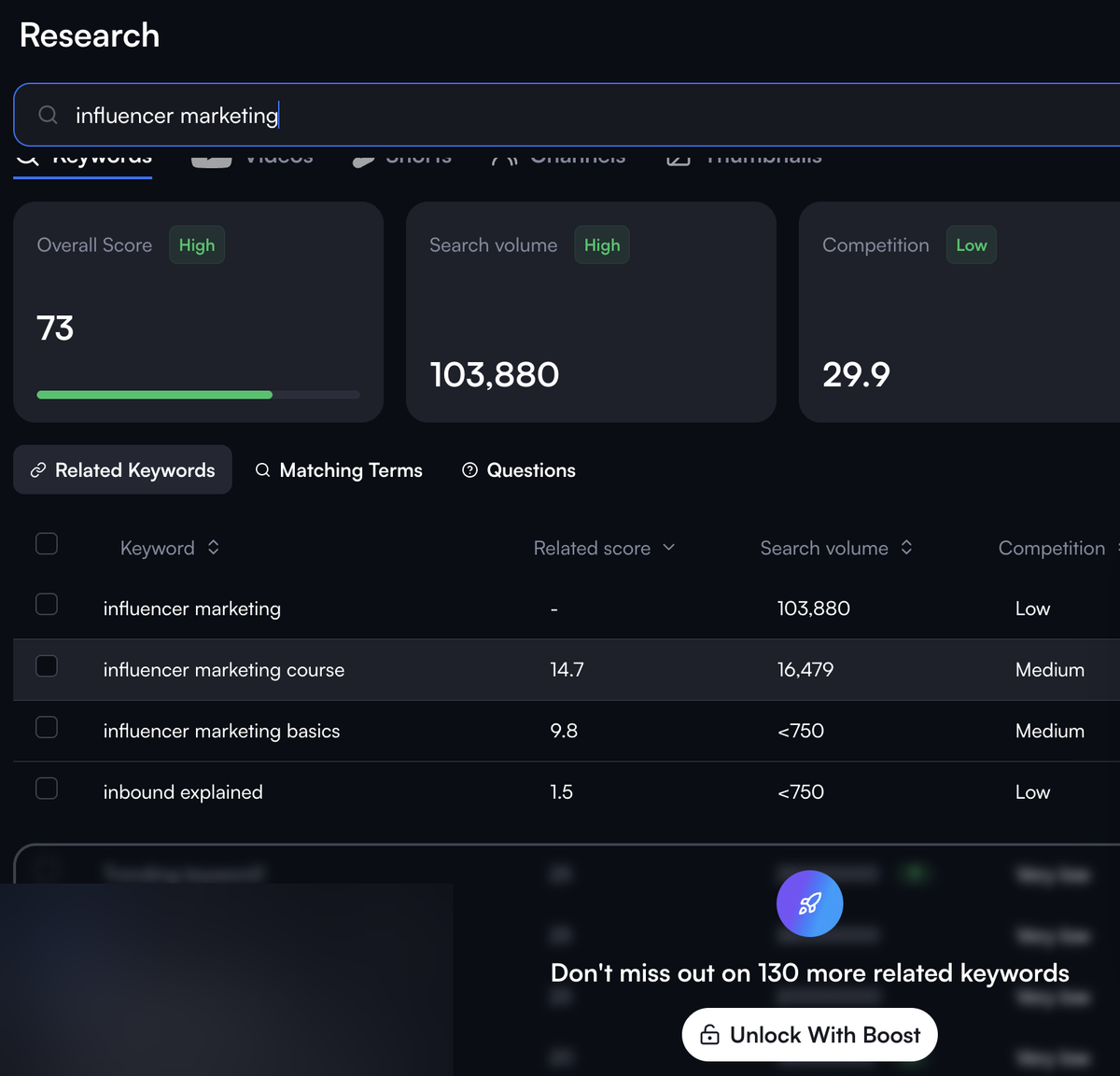
What I use: VidIQ’s free tier is my keyword research tool. In my opinion it’s the best keyword research available for YouTube. The free tier is limited, so expect to see less than a paid account does.
When I search a topic like influencer marketing on my free account, I get an overall score, a search volume estimate and a competition rating, plus four related keywords. The rest of the related keywords stay locked until you upgrade.
TubeBuddy
TubeBuddy offers a Chrome extension and a mobile app. Its pricing page puts bulk processing and A/B testing on the Legend plan, and a canceled paid license drops back to the free plan.
What I plan to use: I’m planning to use TubeBuddy for the new niche channels I’m planning. I’d argue bulk editing only pays off once a channel has a back catalog to edit.
YouTube search autosuggest
Autosuggest is the free tool hiding in plain sight. To use it:
- Open YouTube in a private browser window, so your own watch history doesn’t color the suggestions.
- Type your topic slowly into the search bar and write down every suggestion that appears.
- Add a letter after your topic (a, b, c) and repeat to pull out longer phrases.
- Type your brand name too. You’ll see what people pair with it, flattering or not.
Claude
What I use: I draft titles, descriptions and scripts with Claude. It handles the first drafts, and I make the editorial calls and supply the experience.
Claude’s free plan includes up to five Projects, which is enough to keep a channel’s voice notes and past scripts in one place. If you’re still choosing an assistant, start with how Claude compares to ChatGPT. The research behind a title is a bigger subject than this section, and YouTube SEO picks it up from keyword to upload.
Once you know what the video is about, the next decision is how you’ll capture it.
What should you use to record your videos?
If you record interviews or talking-head videos, use Riverside, which records each participant on separate audio and video tracks and lets you try it on a free plan. If you go live with guests, StreamYard runs in a browser studio guests join from a link. For screen-recorded tutorials, Camtasia records your screen, camera and audio on separate tracks.
Riverside
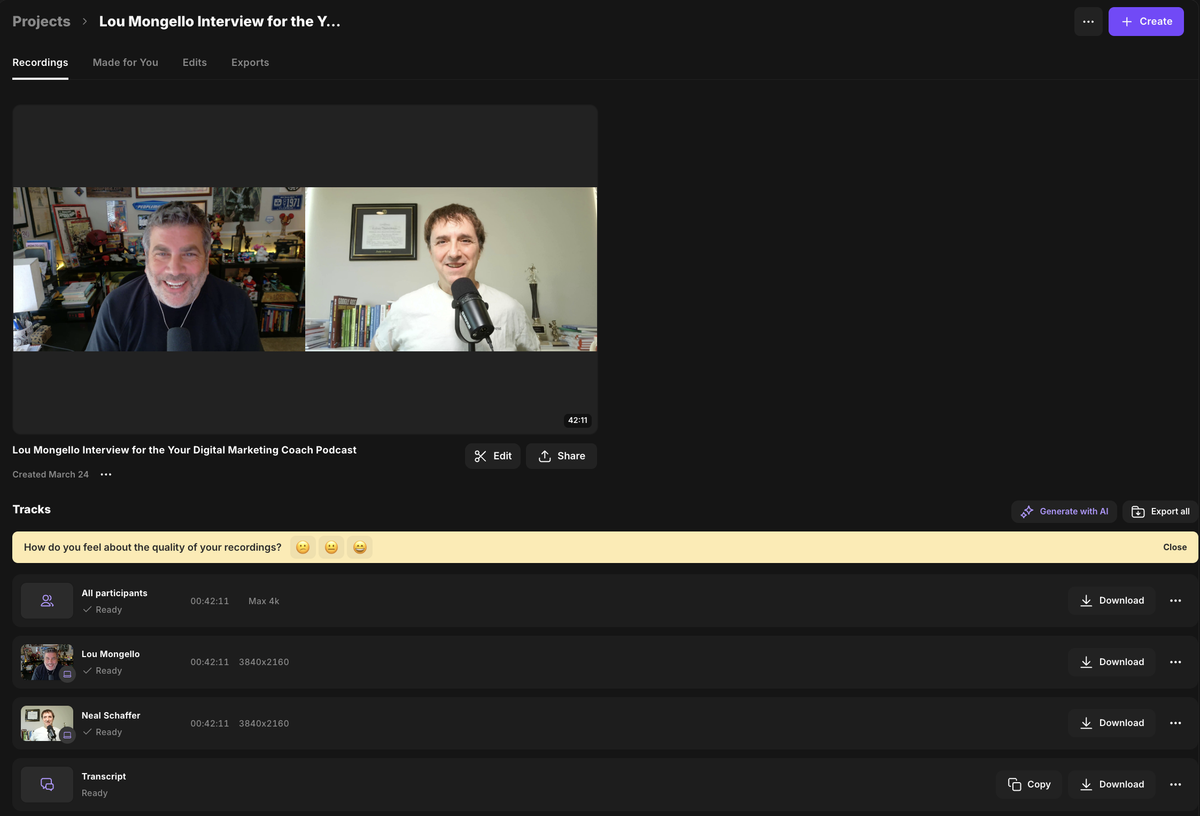
What I use: I record my guest interviews for my podcast and my YouTube videos in Riverside.
Riverside’s free plan includes a one-time two hours of multi-track recording, with video up to 720p and a Riverside watermark on everything you export. The Pro plan raises that to up to 4K video and 48kHz audio with no watermark, and it comes with a 14-day free trial. Live streaming and multistreaming sit on Riverside’s Grow plan.
On one of my guest interviews, Riverside gave me a separate 3840 x 2160 track for my guest and for me, plus a combined track and a transcript, each ready to download.
Is Your Digital Marketing All Over the Place?
My latest book helps small businesses, entrepreneurs, and marketers bring search, email, and social together into one digital marketing strategy that actually compounds.
Drawing on my work as a Fractional CMO, Digital Threads turns complicated tactics into a clear, practical plan you can follow, whatever your budget or team size.
Grab your copy on Amazon and start weaving your own digital threads. Click the cover or the button below to get started.

StreamYard
What I used: I used StreamYard back when I livestreamed all of my podcast interviews, which I no longer do.
StreamYard keeps the whole studio in the browser, so a guest clicks a link and joins without installing anything. The free plan streams to one destination per stream, and paid plans add multistreaming to 3, 8 or 10 destinations depending on the tier.
If you do go live, the archive keeps working after you go offline. As I wrote in Digital Threads, I first livestreamed my podcast recordings straight to YouTube from Zoom, and YouTube indexed each stream like any other video.
Camtasia
What I use: I’ve used Camtasia.
Camtasia is built for screen-first video. It records your screen, camera, system audio and microphone on separate tracks, so you can fix one without touching the others. TechSmith lets you download and use the full editor for free, and exports carry a watermark until you buy a plan.
Recording gets you raw footage. Turning that footage into something people finish watching is the editor’s job.
Which video editor should you use for YouTube?
If you want templates that get you to a finished look fast, try Movavi Video Editor, whose 2027 release lets you rearrange the pieces of each template. If you want to test an editor before paying, try Filmora’s free trial. If your videos are mostly talking, Descript lets you edit the video by editing its transcript.
Each of the three editors below covers what YouTube Studio’s trim-and-cut editor can’t. The wider field of video editing apps is its own decision.
Movavi Video Editor
Movavi Video Editor built its 2027 release around templates for vlogs, promos, family videos and tutorials. Each template is made of Blocks, short pre-edited segments you can move, add or remove. The release also added auto-tracked cropping for turning horizontal footage vertical. You can download it for free and try the subscription for seven days.
Filmora
Filmora works on footage you’ve already shot. Wondershare says trial exports may include a watermark, and a paid plan is generally required for watermark-free exports. That makes the trial a test of the workflow rather than a way to publish.
Descript
Descript transcribes your video and lets you cut it by deleting words from the transcript. Its free plan includes 60 media minutes a month and exports at 720p with a watermark. Studio Sound and filler-word removal are limited on the free plan and included on paid plans.
A finished edit still needs a reason for someone to click on it, which is where thumbnails come in.
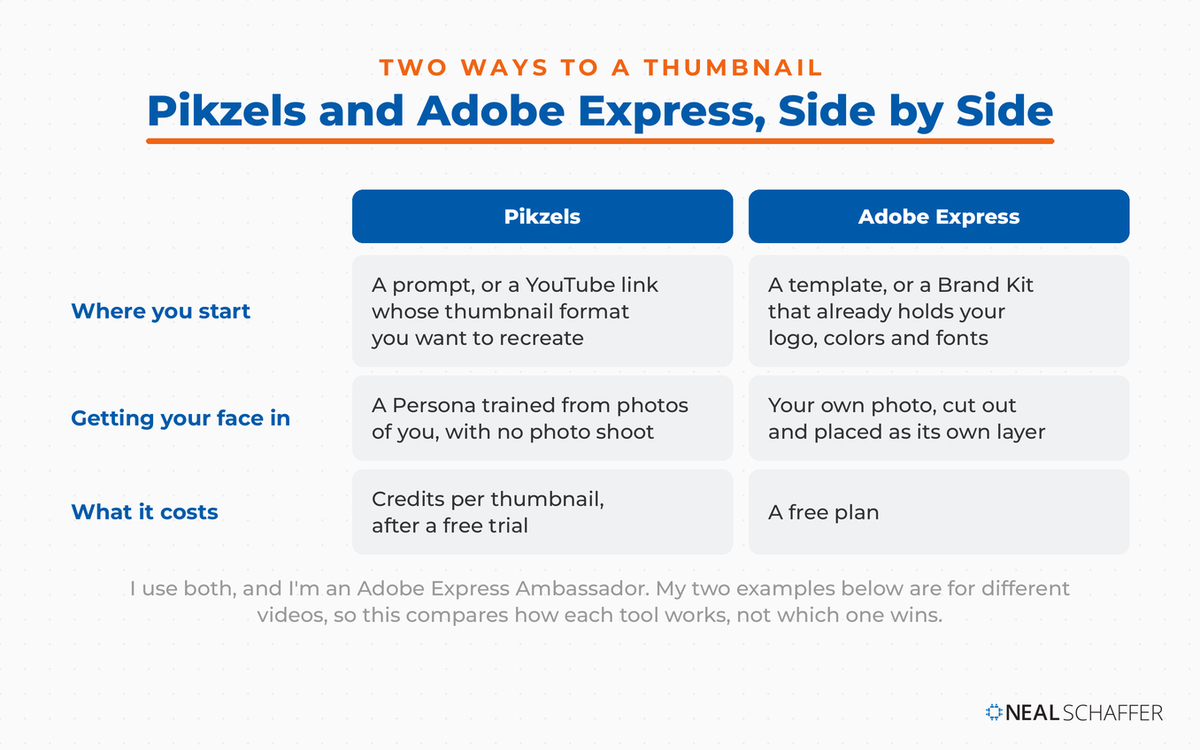
If you want branded thumbnails on a free plan, use Adobe Express, which saves your logo, colors and fonts in a Brand Kit. If you want AI-generated concepts fast, use Pikzels. Then test the finalists with YouTube’s Test & Compare, which picks a winner by watch time rather than clicks.
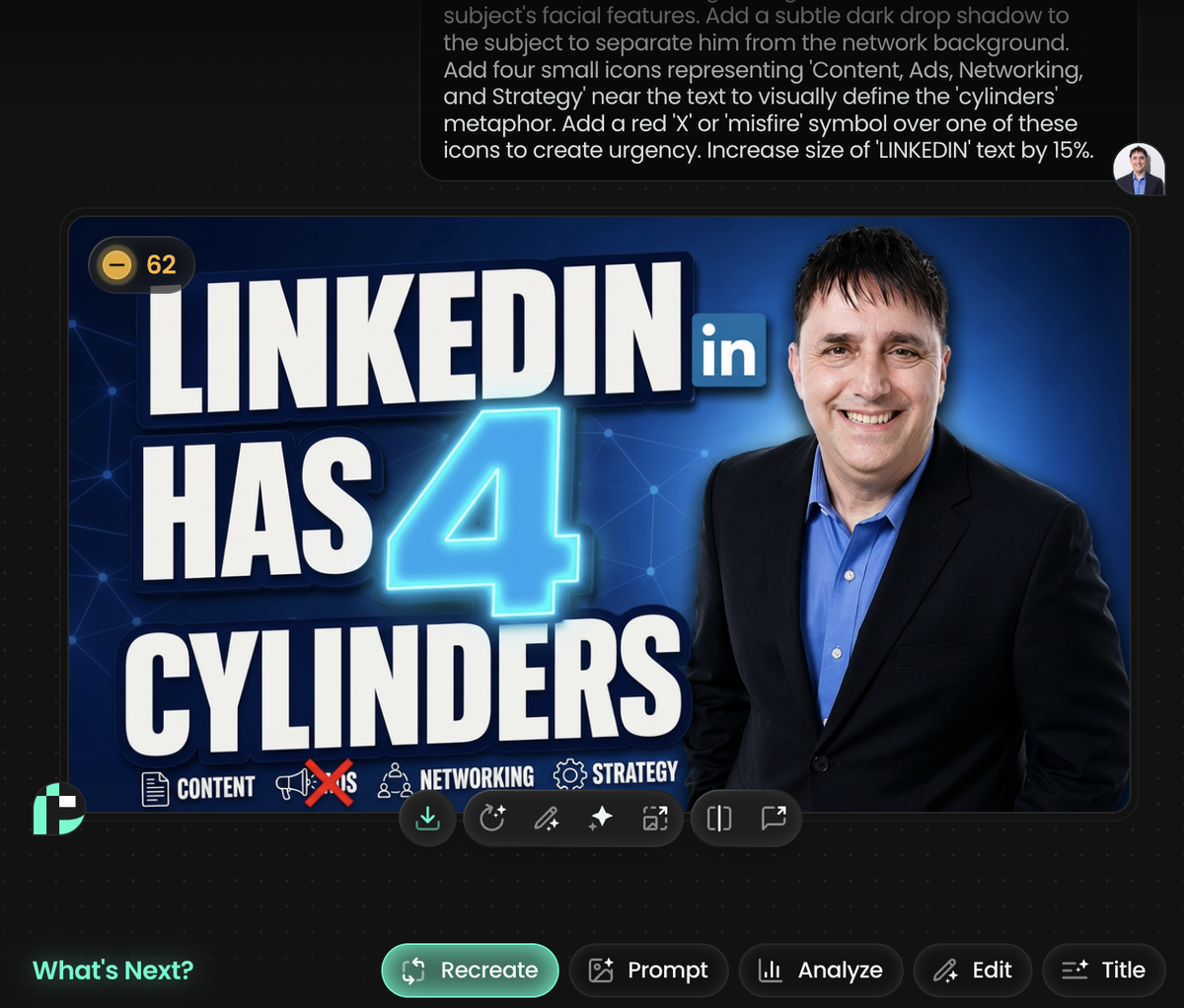
What I use: lately I make my thumbnails in Pikzels, alongside Adobe Express. I’m an Adobe Express Ambassador, so weigh my take on it with that in mind.
The two are completely different animals. In Pikzels I describe the thumbnail in a prompt and keep refining it in plain language. In Adobe Express I lay out the design myself, one layer at a time.
Adobe Express
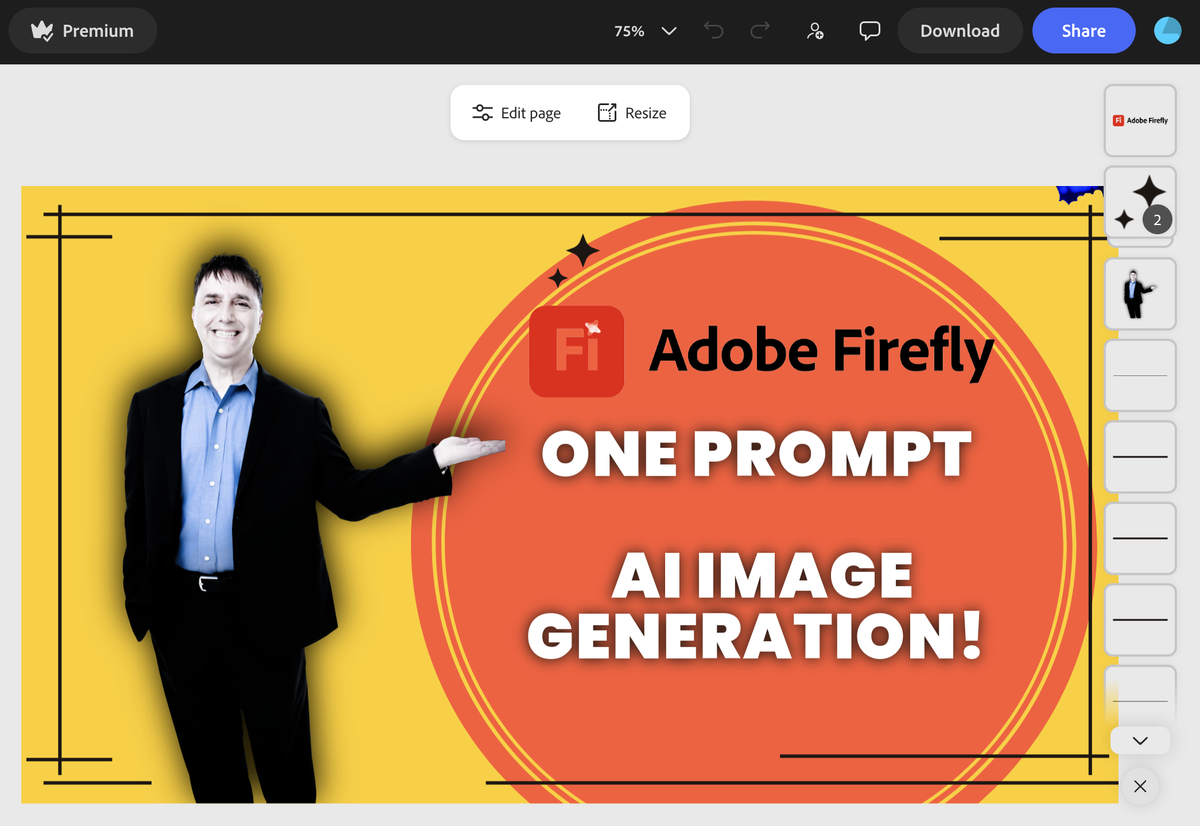
Adobe Express has a free plan with thousands of thumbnail templates, and its canvas defaults to 1280 x 720, which Adobe notes is YouTube’s recommended size. Adobe’s own tip is to avoid the bottom-left corner, where YouTube places the video’s duration. Build your Brand Kit once, and every thumbnail after that starts on brand.
Pikzels
Pikzels describes itself as a YouTube packaging tool rather than a general image generator. According to its pricing page, you can describe an idea in a prompt or paste a YouTube link to recreate a thumbnail format. You can also train a Persona from three photos of yourself, so your face appears without a photo shoot. It runs on credits, with a free trial before you subscribe. Training a Persona costs 50 credits, and each thumbnail costs 10 to 20.
YouTube Test & Compare
Test & Compare lives inside YouTube Studio and costs nothing. YouTube lets you test up to three titles, three thumbnails or three title-and-thumbnail pairs. At the end, the option with the highest watch time is shown to everyone. To run one:
- Sign in to YouTube Studio on a computer. The feature is desktop only.
- Click Content in the left menu, then click the video you want to test.
- In the Title box or under Thumbnail, click A/B Testing.
- Choose Title only, Thumbnail only or Title and thumbnail, upload up to three versions, and click Done.
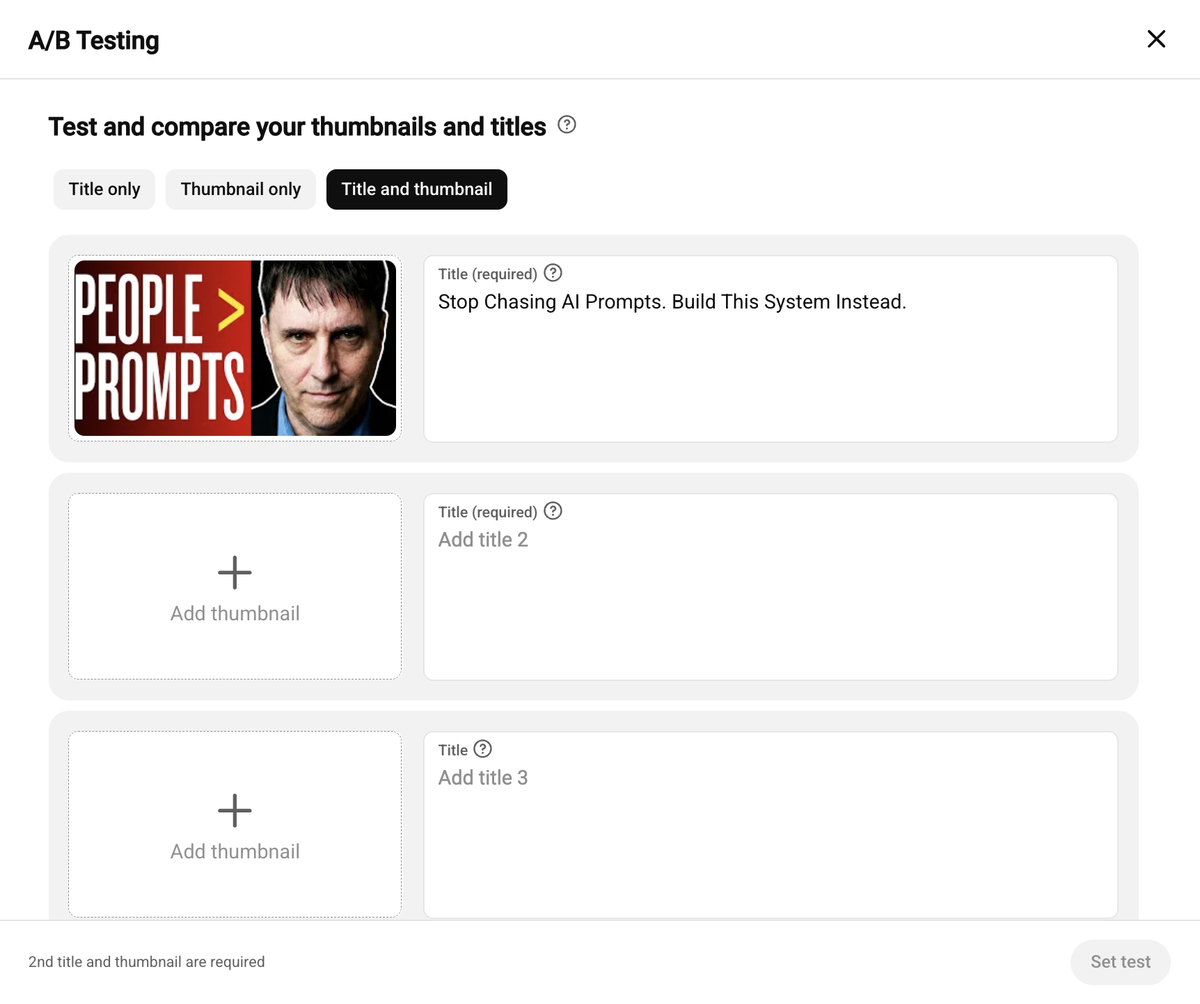
A few limits to know before you start. You need advanced features turned on. Shorts, scheduled livestreams and made-for-kids or private videos can’t be tested. A test can take up to two weeks, and YouTube’s help page says a video without enough impressions may finish without a clear winner. YouTube also suggests testing older videos first.
What goes on the thumbnail is a separate question, and my YouTube thumbnail post takes it on. Once the packaging is ready, everything goes through one free dashboard.
What does YouTube Studio do on its own?
YouTube Studio is YouTube’s free dashboard for uploading videos, editing details, adding captions and reading your channel’s analytics. It also trims uploaded videos and runs title and thumbnail tests. Learn what it covers before you buy anything, because you might find a paid tool you were about to buy repeats a job Studio already does.
The editor
Studio’s editor lets you trim the start, end or middle of a published video, and the URL, view count and comments stay the same. Two quirks matter. As of June 2025, YouTube says you can’t undo saved editor changes with Revert to original. And if an unedited video has more than 100,000 views, you may not be able to save changes unless your channel is in the YouTube Partner Program.
Captions, cards and end screens
YouTube can create captions automatically with speech recognition, and YouTube itself tells creators to review them. To check yours, open YouTube Studio, select Subtitles, click the video, then click More next to the subtitles you want to edit. Studio is also where you add YouTube cards and end screens to point viewers at your next video.
Captions, titles and descriptions are also part of video SEO, the work that helps your videos get found beyond YouTube’s own feed.
The YouTube Creators channel
YouTube’s old Creator Academy address now lands on the YouTube Creators channel, YouTube’s official channel for creator updates, news and best practices. It’s free, and it’s where YouTube explains changes in its own words.
Publishing is not the last step anymore. A long video you’ve already made can keep feeding your channel as Shorts.
How do you turn long videos into YouTube Shorts?
If you need to turn long videos into Shorts, use OpusClip. It suggests clips from a long video, reframes them vertically and adds captions. According to its pricing page, the free plan includes auto reframe and AI captions with a watermark. Movavi’s auto-tracked cropping and Adobe Express’s Clip Maker are alternatives if you already pay for either.
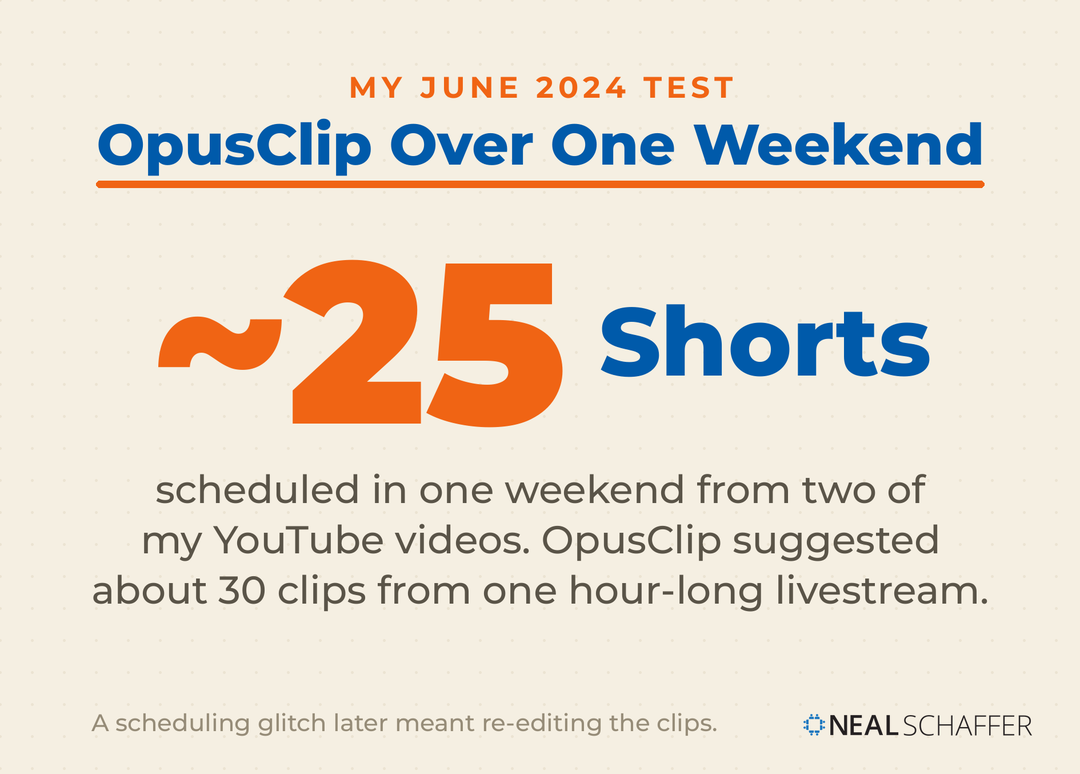
What I use: I use OpusClip for both clipping Shorts and adding captions.
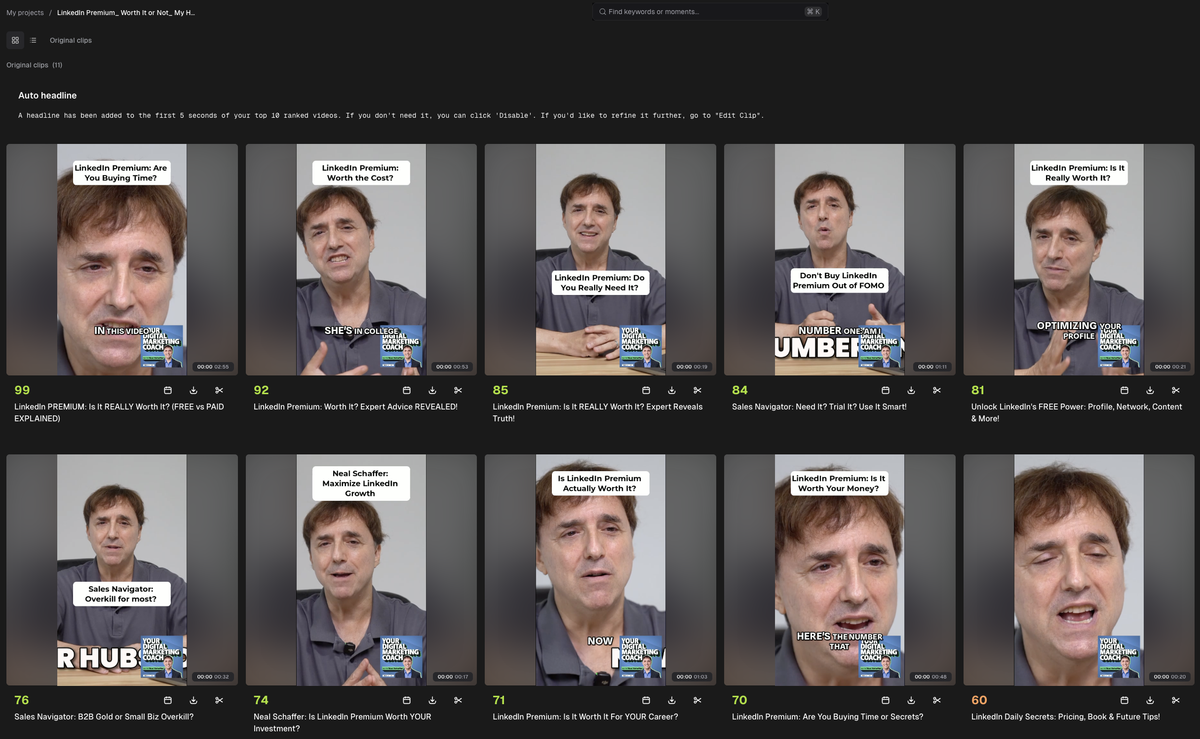
When I ran one of my solo talking-head videos on LinkedIn Premium through OpusClip, it returned 11 vertical clips. Each came back with burned-in captions, a suggested title and a score, ranked from 99 down to 60, and OpusClip added a headline to the first five seconds of the top 10.
What happened when I tested the clipping tools
In June 2024 I put OpusClip up against the other short-form clipping tools I’d shortlisted, for an episode of my podcast. OpusClip came first, Vizard came second, and Munch came third. Most of the others failed on one specific requirement.
| Tool | What stopped it in my June 2024 test |
|---|---|
| OpusClip | Nothing. It met every requirement, with one scheduling glitch |
| Vizard | Couldn’t add text before or after a suggested clip |
| Munch | Slowest processing of the group, and the caption editing wasn’t intuitive |
| Exemplary | Motion tracking still in development, and clips couldn’t be extended |
| Goldcast | Clips defaulted to horizontal |
| Pictory | No auto-framing, as far as I could tell |
| Vidyo | Auto-framing needed the $50-a-month plan at the time |
| Captions | Wouldn’t let me log in with an email address |
| FlexClip | Couldn’t import a YouTube link |
| Submagic | Couldn’t import a YouTube link |
| Klap | The verification email arrived about six hours after I registered |
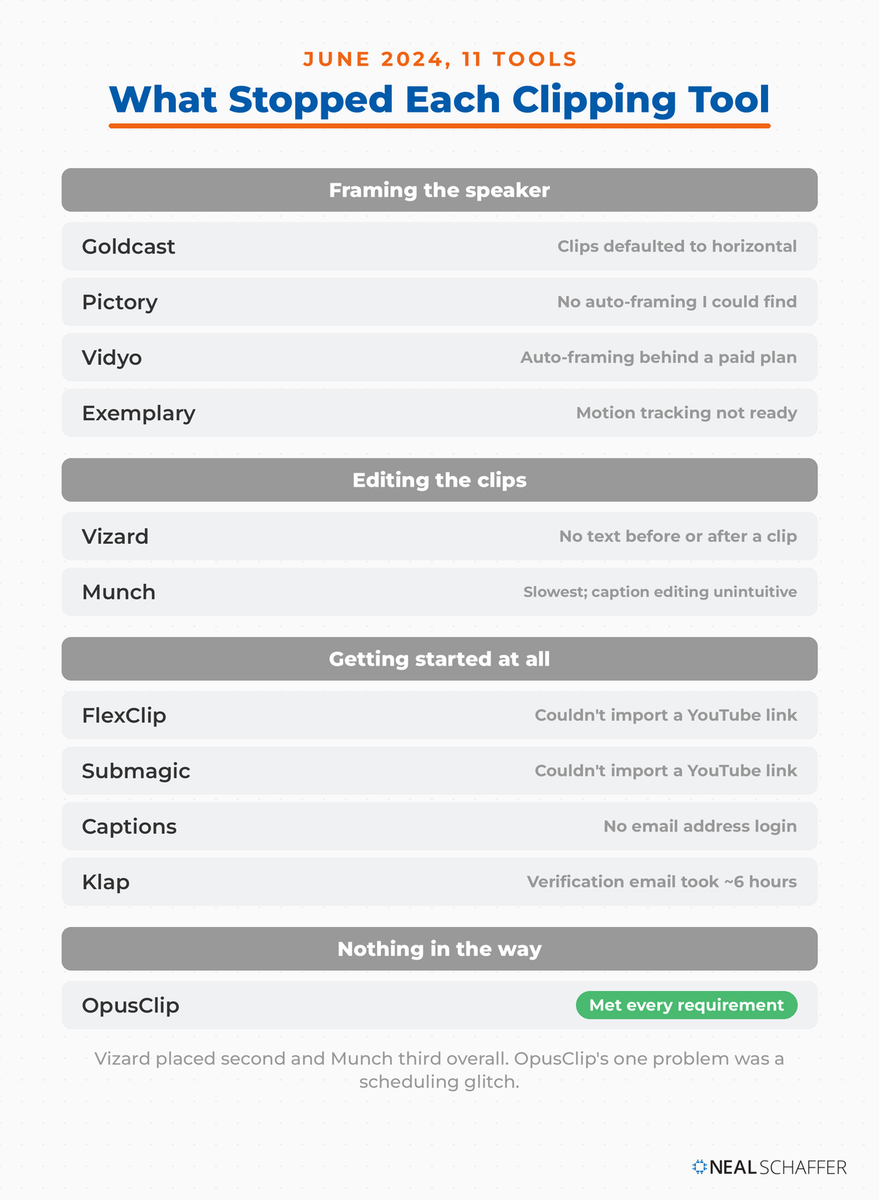
Auto-framing was my deal-breaker. My livestreams at the time switched between one speaker and two, so a clipping tool has to keep the right person centered. Without it, you reframe every clip by hand.
OpusClip took the link to an hour-long livestream and suggested about 30 clips. Over one weekend I scheduled roughly 25 Shorts from two YouTube videos. Then a glitch stopped the scheduled clips from previewing, and I had to re-edit them. My fix was to download each clip right after processing.
Back then I couldn’t find a way to add sound effects or upload my own B-roll. OpusClip’s pricing page now lists AI sound effects and media uploads on its Pro plan.
On that 2024 episode of my podcast, I explained why I keep clip selection in-house: “You are the creator. It’s really hard for other people to emulate the content that you would choose to generate a short form video from.”
The alternatives
If you already pay for Movavi, its auto-tracked cropping from the editing section handles the reframing step. Adobe Express has a Clip Maker too. In a May 2025 video I used it to turn a 33-minute podcast interview into 10 short clips, and the ambassador disclosure above applies.
The specs and length rules for the Shorts themselves are in how to make YouTube Shorts, and choosing which short-form video formats to clip toward is its own decision. Clipping is one piece of a bigger content repurposing habit.
All of this assumes you publish often enough to need it, which isn’t true for every channel.
If you publish only a few videos a year, you probably don’t need any paid tool on this list. YouTube Studio, search autosuggest and a free design plan cover a light schedule. Paid tools earn their cost on volume, a back catalog or a team, so I would wait until one of those is real for your channel.
Some tools assume things a new channel doesn’t have yet:
- Bulk editing in TubeBuddy assumes a back catalog worth editing in bulk.
- Test & Compare assumes impressions. YouTube’s own A/B testing help page says a test may not name a winner when a video lacks impressions.
- Clipping tools like OpusClip assume long videos to clip from. If you only make Shorts, you can skip this category.
- Multistreaming in StreamYard assumes you’re live on more than one platform.
In my opinion, YouTube Studio. It handles uploads, captions, cards, end screens, basic trimming and the Test & Compare thumbnail test covered above, all at no cost. Add VidIQ’s free tools for keyword research and you have a working starter kit.
I use VidIQ’s free tier, and in my opinion it’s the best keyword research available for YouTube. YouTube’s search autosuggest is a free second check on how real viewers phrase a topic.
Yes. Test & Compare in YouTube Studio tests up to three titles or thumbnails and keeps the version with the highest watch time, as described in the thumbnail section above. It’s desktop only and doesn’t work on Shorts.
For me it’s OpusClip, which I use for clipping and captions. In my 2024 test of clipping tools it was the only one that met every requirement I had, including auto-framing for livestreams with two speakers.
Not to start. YouTube Studio trims and cuts, and Filmora, Camtasia and Descript all let you try their editors for free, with a watermark on exports. Pay once your videos need templates, transitions or multitrack audio.
Ready to Build Your YouTube Stack?
Start with the free layer before you buy anything. Open YouTube Studio, turn on advanced features so Test & Compare is available to you, and review the automatic captions on your last three videos. Fixing those costs nothing and takes an afternoon.
Then pick one tool for the job that’s slowing you down most. For most channels that’s planning, so run your next topic through VidIQ’s free tools and YouTube autosuggest before you record.
If you’re still deciding whether a channel is worth the effort, read how to become a YouTuber before you buy anything.
And if you’d rather have someone build the video side of your marketing with you, get in touch about Fractional CMO services or download a free preview of Digital Threads.
Actionable advice for your digital / content / influencer / social media marketing.
Join 13,000+ smart professionals who subscribe to my regular updates.
