


On Facebook, Twitter, and other social networks, it is very easy to “unfriend” someone. For some reason it is very difficult to figure out how to remove a LinkedIn contact.
If you think about it, LinkedIn was originally intended to be a social network for professionals who only connected with people they know and trust. But, similar to other social media sites, users today are more open and might connect with someone that they might not know too well. This is similar to how they might follow someone who seems interesting on Twitter / X or Instagram without personally knowing them. In fact, many LinkedIn profiles (like my own) actually feature a Follow button, and you need to search further to actually send an invitation to connect.
Sometimes, for whatever reason, we might want to remove a contact that doesn’t make sense to have anymore. After all, if your online or physical relationship does not work out because you feel you are receiving too many spam messages with sales pitches or inappropriate messages, you feel the content that they publish is offensive, or for any other reason, you do have the option of removing them as a LinkedIn contact. Connecting with someone on LinkedIn is not a marriage by any means! Hopefully this gives those who want to build out a larger network or even those who want to start slowly connecting to people that you virtually meet on LinkedIn some sense of security in doing so.
How to Modify LinkedIn Privacy Settings to Stop Displaying Profile Visits
Before we proceed here, especially because the first method involves potentially visiting a LinkedIn profile, let’s make sure that first we understand how to discreetly delete a connection without the other person knowing through modifying our Privacy Settings.
Although the search function is very useful for utilizing LinkedIn, you do not always want to crop up in people’s profile views when you visit their profile. To make sure that your professional life remains private, and contact details are not shared, you can set your privacy to one of two options: entirely private, or simply “someone at [your school or place of work]”. While there may not be a second glance given for someone who has 1000s of contacts, it can still be awkward or uncomfortable to purge people from your contact list. To make sure that the contact in question does not know that you are visiting their profile, use one of these two options to limit profile visibility, private mode being the ultimate in privacy!
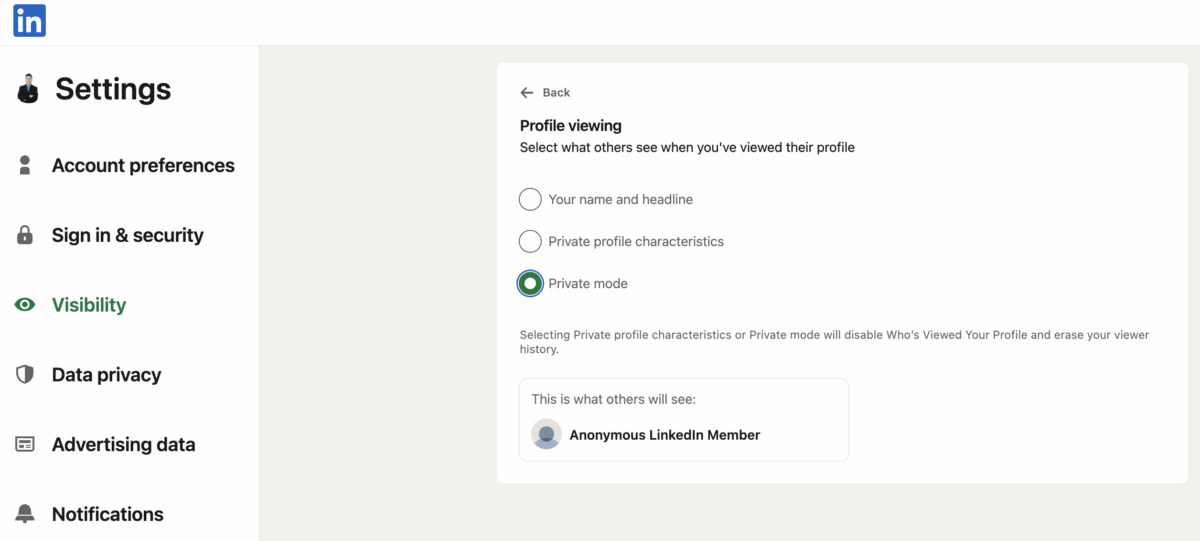
If you don’t know how to get the Profile Viewing settings pictured above, simply click here to be forward there!
Although LinkedIn doesn’t make it easy to remove a contact, there are three ways that I have discovered to easily remove contacts after being one of the first million users back in 2004 and an active user since 2008. In fact, I have written 3 books on LinkedIn, including my latest, Maximizing LinkedIn for Business Growth.
Let’s now dig in to the recommended methods. Please note that all of these methods work on the desktop version of LinkedIn but should also work inside the mobile app version regardless if it is for iPhone or Android.
1. Remove Contacts When Receiving a Message from Them
This has become the most common method for me. You have probably been in my shoes after receiving a harmless invite from someone interested in networking with you. You see their profile picture and name in their invite and you click accept. Then you receive their first message after connecting which is usually some sort of a sales pitch.
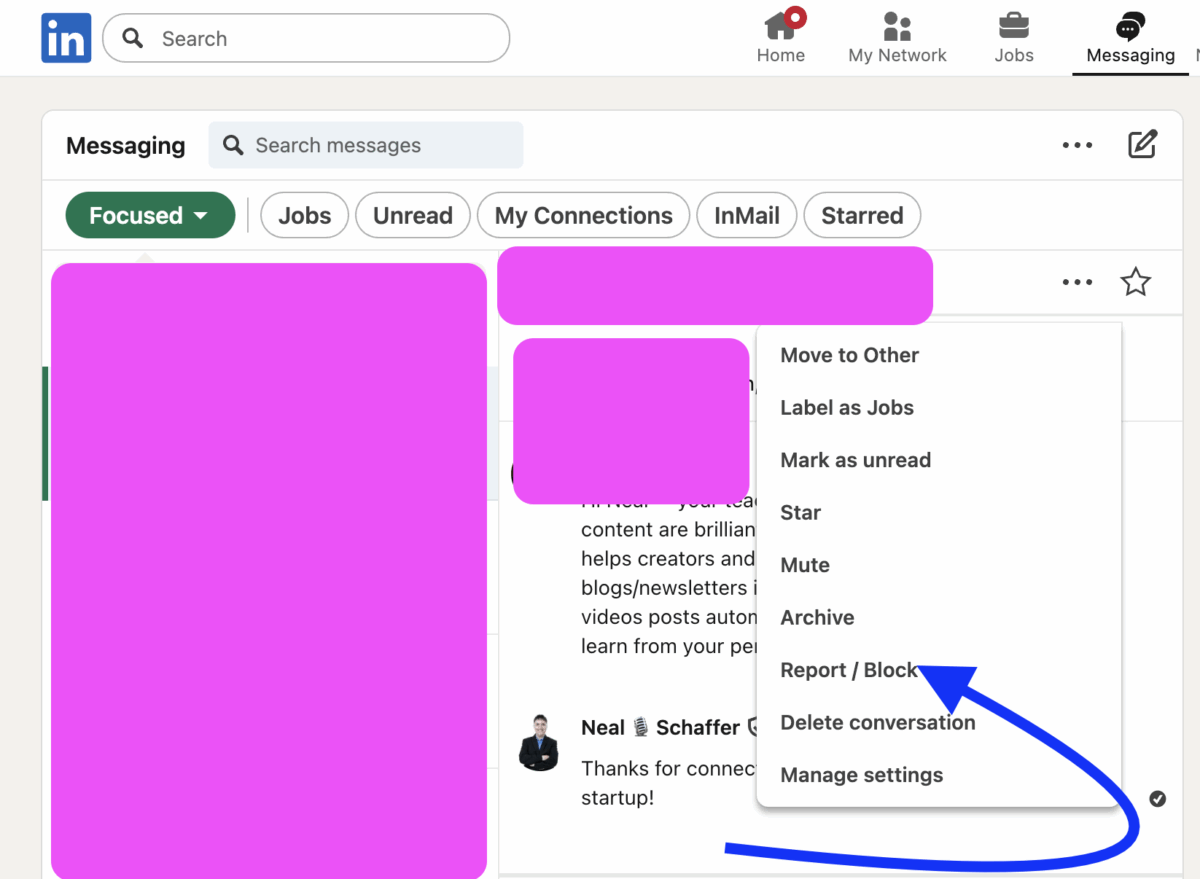
The beauty is that the LinkedIn user interface allows you to remove a contact from your Inbox. The problem is that you cannot merely remove them but must also block them. Considering that the person who contacted you might be one of a number of fake profiles that exist on LinkedIn, you might be totally OK blocking someone. I know I am!
Clicking on the 3 dots next to the LinkedIn profile name of the sender unlocks a menu displayed below which provides you the option to block someone by clicking the “Report / Block” button and then reporting them. Block away!
2. Delete Connections When Visiting Their Profile
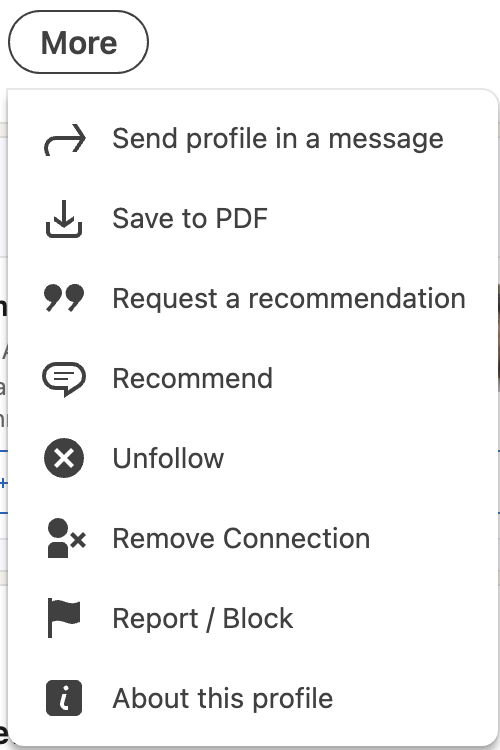
This is the second easiest way to delete connections on LinkedIn. After all, there is probably an incident that makes you want to remove a LinkedIn connection, so if it wasn’t through receiving a message like in the above example, you will probably end up visiting that person’s profile to make sure you want to remove them. If you are concerned that they might find out that you visited their profile, make sure you visit their profile with your privacy settings showing you as an anonymous visitor as I recommended earlier in this post.
Once you have landed on their profile, press the right arrow for a drop-down menu where you see a “More” prompt, and you should see the “Remove Connection” option near the bottom as pictured below:
3. Delete Connections From My Network Connections view
How to delete connections on LinkedIn if you already have a list of people you want to remove as a LinkedIn connection or you want to scroll through your LinkedIn connections and decide who to remove? This option is for you!
If you navigate to the My Network tab, you will see how many connections you have on the top left corner. Pressing on that number will land you on the Connections view that appears below:
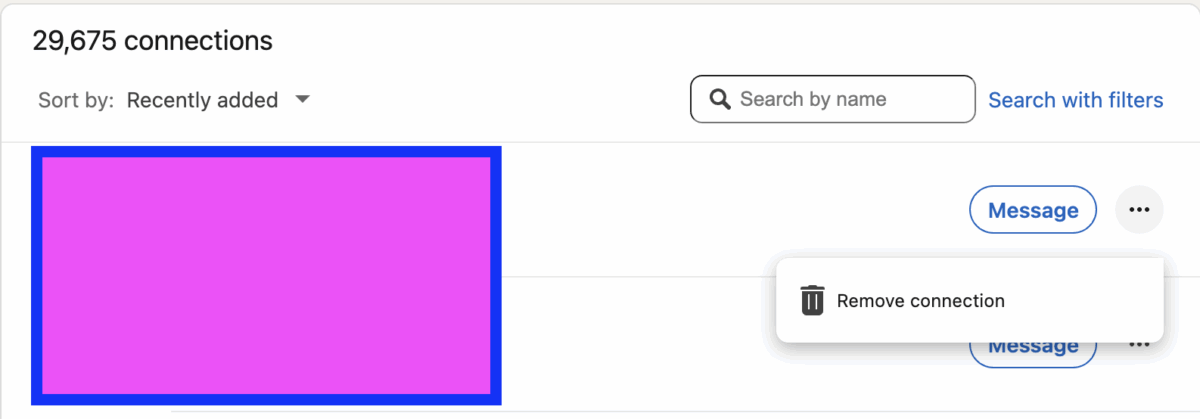
You have the ability here to search for connections by either first name, last name, or the default recently added.
For every connection, you will see a Message button to the right followed by three dots. Pressing the three dots will provide you with a drop menu with the magical Remove Connection button.
Removing a LinkedIn connection through either of the above two methods will yield the same result.
The beauty of understanding how to delete connections on LinkedIn is that:
- Your contact will not be informed that you removed them from your connections.
- Should your disconnected connection wish to invite you to connect again, even after you remove them as a connection, they will get an error message saying something to the effect that “This user cannot be invited at this time”. If they contact you directly about this, be prepared to explain (I have been in the same situation in the past, so you will have to explain in your own words).
- You can re-invite the person you disconnected from, in which case the connection will be fully restored as if you never removed them.
How to Cancel Pending LinkedIn Invitations to Connect
While this is not the same as deleting your LinkedIn connections, you might have a need to cancel pending LinkedIn invites. Why? For the same reason that you might find yourself deleting LinkedIn connections – having too many of them – you might find the same situation with invitations. This is because LinkedIn has restrictions on the number of invitations you can send, so if you intend to send a bunch of new invitations after deleting some LinkedIn connections, you might want to cancel some pending invites that you have to avoid any potential restrictions.
Is Your LinkedIn Not Delivering Results?
Just released: my new book to help professionals, entrepreneurs, and business owners maximize LinkedIn for real growth.
With years of LinkedIn expertise, Maximizing LinkedIn for Business Growth offers actionable steps to build your brand, expand your network, and drive results.
Start leveraging LinkedIn like never before—grab your copy now! Click the cover or button below to buy on Amazon.

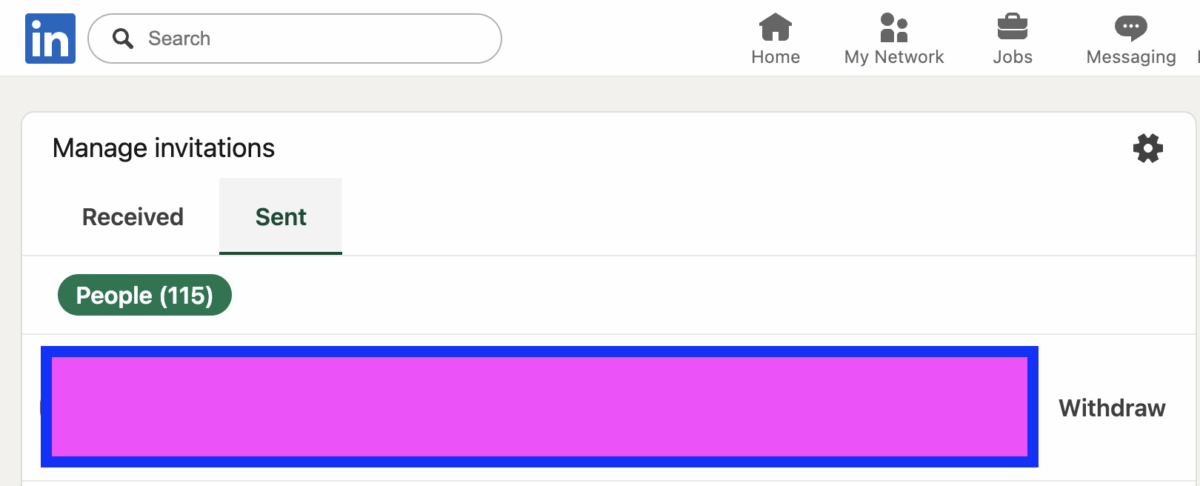
Are you looking to meet your network size requirements and in need of some cancellation requests? First, click on the “My Network” tab to locate your contacts list. To find any pending connection requests for your professional network, navigate to the “manage connections” tab of your connections list. The connection requests tab is not immediately toggled to when you visit the connection manager; instead, you’ll find yourself on the “received” portion of your list of connections. Click over to “sent”, to the right of the landing page. This can be done manually for each request you want to cancel, as there is not currently a built-in option for canceling a multitude of requests. If you want to cancel quite a few pending connection requests from your list of connections, there are some third-party plug-ins that have been developed to do so.
Once you cancel out all of your pending invitations it should look something like this:
Click here for a shortcut on how to find pending invitations for your own LinkedIn profile.
Moving Forward
Now that you know how to remove contacts and even cancel pending LinkedIn requests, you should have the confidence that should you, for whatever reason, want to delete one of your contacts, the option is there–and it is easy to do! Please do note that once removed, you cannot request endorsements or recommendations from them, but I assume that that shouldn’t be an issue if you are removing them!
Actionable advice for your digital / content / influencer / social media marketing.
Join 13,000+ smart professionals who subscribe to my regular updates.
