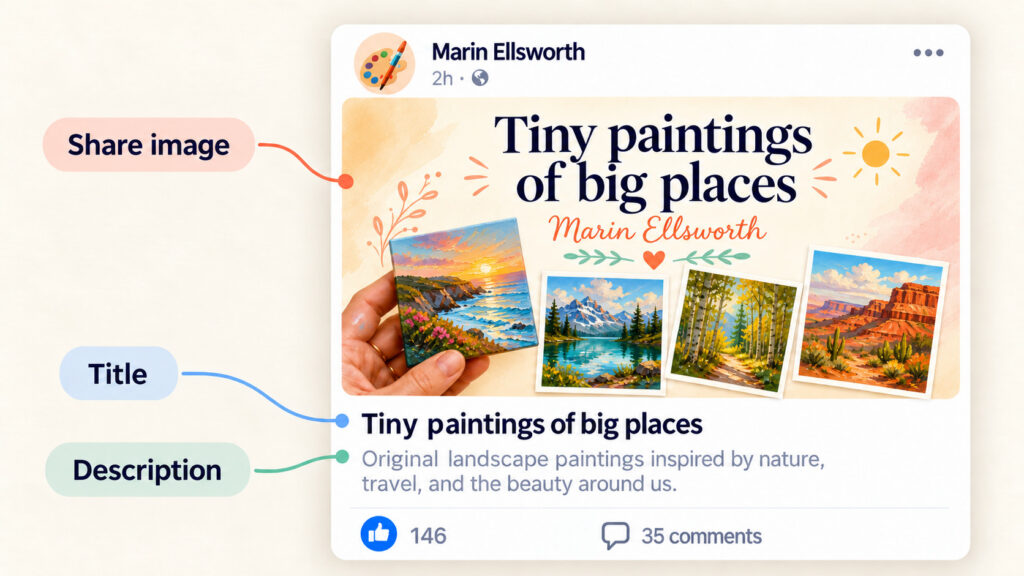
Share a landing page link on social channels or in a text message and those platforms automatically pull a preview. A headline, an image, and a short description of your page.
A blank box or an irrelevant image gets ignored. A preview that shows what’s actually on your page gives people a reason to click.
Every page you publish with the AI Landing Page Builder now gets a custom social share image and preview text built automatically.
What’s in your social preview
Your share image
A 1600×832 image built from your page’s headline, offer, and color palette. That’s the correct size for Facebook, LinkedIn, X, and iMessage. So it displays in full without cropping.
Your page title
A short headline pulled from your page’s content. It’s the first thing people read in the preview before they decide to click.
Your page description
A one or two sentence summary of what’s on your page. Written from the words already there, so the preview matches what people find when they arrive.
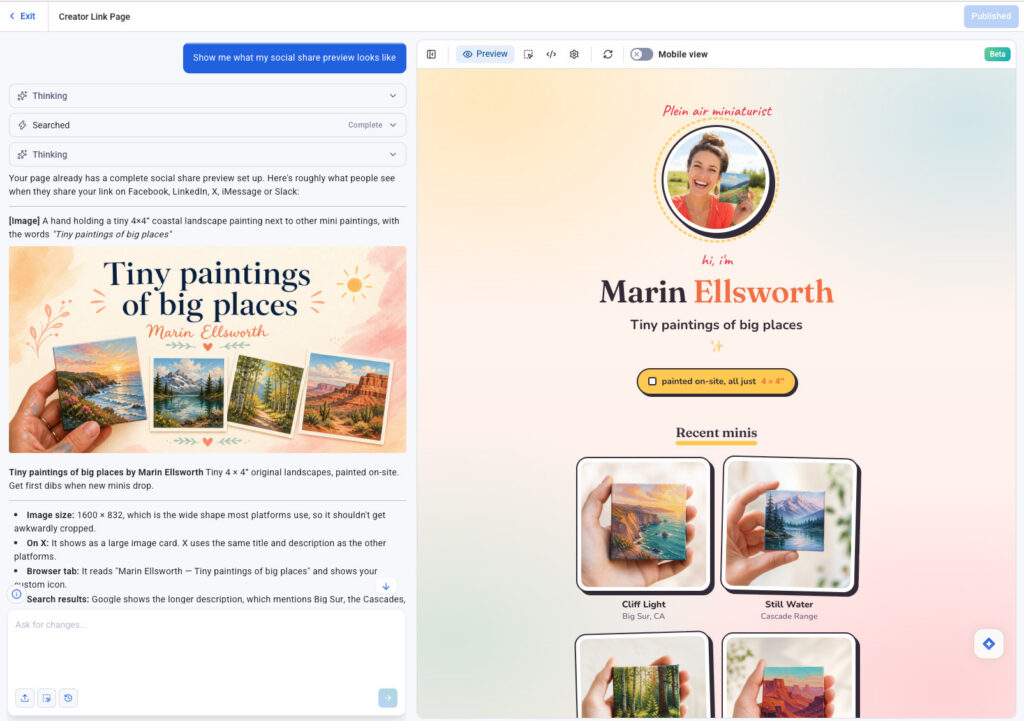
How to review your social preview
Open the AI Landing Page Builder and ask:
“Show me what my social share preview looks like.”
The builder surfaces the share image, title, and description so you can review everything before it goes live.
After you publish, paste your page URL into a Facebook, LinkedIn, X, Slack or directly into an email message. The preview renders immediately.
How to make changes
Want to make a small tweak or a complete redesign? Ask for it in the chat:
“Rewrite the preview description to focus on the free download.”
“Make the share image use a darker background.”
“Shorten the page title.”
The builder updates it. Republish and the change is live.
Frequently asked questions
What size should a social share image be?
The right size is 1600×832 pixels. That’s the format Facebook, LinkedIn, X, and iMessage all use to display link previews without cropping. Every page built with the AI Landing Page Builder uses this size automatically.
What is an Open Graph image?
An Open Graph image is the graphic that appears when you share a link on social media. Platforms like Facebook and LinkedIn read a tag in your page’s code to find it. If that tag isn’t set, the platform guesses, usually pulling a random image from the page or showing nothing. The AI Landing Page Builder sets the Open Graph image for every page you publish.
What is a social share image?
A social share image is the visual that appears in a link preview when you share a URL on social media, in a text message, or over email. It’s the first thing people see before they decide to click. A relevant, well-sized image gets more clicks than a blank or cropped one.
Why isn’t my link preview showing the right image?
If you built your page with another tool, the Open Graph image may not be set or may be the wrong size. Pages built with AWeber’s AI Landing Page Builder set the image automatically.
Can I use my own image for the social share?
Yes. Ask in the chat: “Include my book cover in the social sharing image.” The builder will incorporate it and rebuild the preview around it.
Share your next page
Build a page with the AI Landing Page Builder, click Publish, and your social preview is already set.
Share a landing page link on social channels or in a text message and those platforms automatically pull a preview. A headline, an image, and a short description of your page.

A blank box or an irrelevant image gets ignored. A preview that shows what’s actually on your page gives people a reason to click.

Every page you publish with the AI Landing Page Builder now gets a custom social share image and preview text built automatically.

What’s in your social preview

Your share image

A 1600×832 image built from your page’s headline, offer, and color palette. That’s the correct size for Facebook, LinkedIn, X, and iMessage. So it displays in full without cropping.

Your page title

A short headline pulled from your page’s content. It’s the first thing people read in the preview before they decide to click.

Your page description

A one or two sentence summary of what’s on your page. Written from the words already there, so the preview matches what people find when they arrive.

How to review your social preview

Open the AI Landing Page Builder and ask:

“Show me what my social share preview looks like.”

The builder surfaces the share image, title, and description so you can review everything before it goes live.

After you publish, paste your page URL into a Facebook, LinkedIn, X, Slack or directly into an email message. The preview renders immediately.

How to make changes

Want to make a small tweak or a complete redesign? Ask for it in the chat:

“Rewrite the preview description to focus on the free download.”

“Make the share image use a darker background.”

“Shorten the page title.”

The builder updates it. Republish and the change is live.

Frequently asked questions

What size should a social share image be?

The right size is 1600×832 pixels. That’s the format Facebook, LinkedIn, X, and iMessage all use to display link previews without cropping. Every page built with the AI Landing Page Builder uses this size automatically.

What is an Open Graph image?

An Open Graph image is the graphic that appears when you share a link on social media. Platforms like Facebook and LinkedIn read a tag in your page’s code to find it. If that tag isn’t set, the platform guesses, usually pulling a random image from the page or showing nothing. The AI Landing Page Builder sets the Open Graph image for every page you publish.

What is a social share image?

A social share image is the visual that appears in a link preview when you share a URL on social media, in a text message, or over email. It’s the first thing people see before they decide to click. A relevant, well-sized image gets more clicks than a blank or cropped one.

Why isn’t my link preview showing the right image?

If you built your page with another tool, the Open Graph image may not be set or may be the wrong size. Pages built with AWeber’s AI Landing Page Builder set the image automatically.

Can I use my own image for the social share?

Yes. Ask in the chat: “Include my book cover in the social sharing image.” The builder will incorporate it and rebuild the preview around it.

Share your next page

Build a page with the AI Landing Page Builder, click Publish, and your social preview is already set.

Create your next page