


If you’re a video editor looking to take your projects to the next level, you know that finding the perfect template can make all the difference.
That’s why we created this curated collection of free templates for DaVinci Resolve, the modern, popular video editing application. These templates are easy to use and customize, so you can quickly create professional-grade videos.
Whether you’re new to DaVinci Resolve or an expert, you’ll find a free template that suits your needs here. From stunning title sequences to elegant lower thirds, these templates have everything you need to take your videos to the next level.
Templates like these are must-haves in your creative arsenal. They save you time, and you don’t need to be a video editing expert to use them.
What to Look for in a DaVinci Resolve Template
A preview shows the finished animation, but it may not show how much work it takes to use. Check these details before choosing a template:
- Version compatibility: Check which version of Resolve the template requires and whether it works in the free edition or needs Studio.
- File type: See whether you are downloading an effect, a Fusion template, or a complete project. Each is added to Resolve differently.
- Editable controls: Look for text, color, and timing settings in the Inspector. Some templates require changes inside Fusion.
- Format: Check the aspect ratio, resolution, and frame rate, particularly if you are making a vertical video.
- Extra assets: See whether fonts, music, footage, or third-party effects are needed to match the preview.
- License: Confirm that your intended use, including client work, is permitted.
Opener Templates for DaVinci Resolve
With these opener templates, you can quickly create professional introductions for your video content. They offer pre-designed transitions, animations, and effects that will help set the tone of your video content.
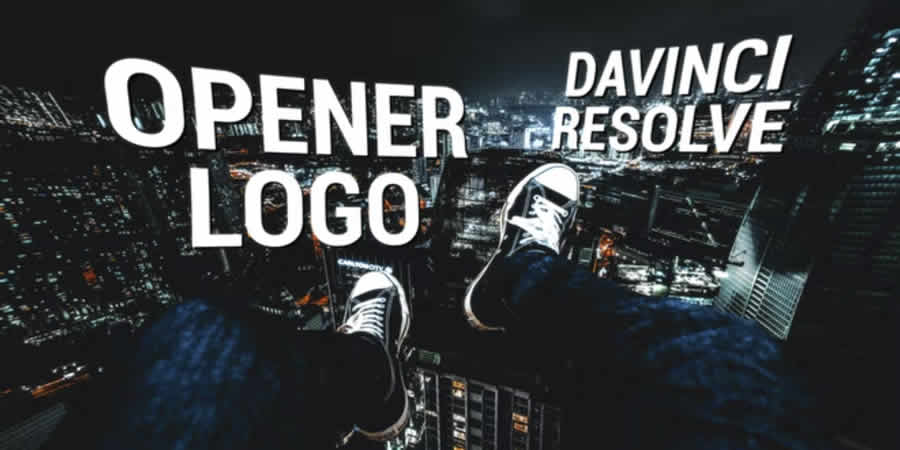
Modern Opener Logo Template for DaVinci Resolve
Free to Download
This modern video opener template is perfect for a corporate or business video presentation. The user-friendly layout lets you add your branding and logo easily.
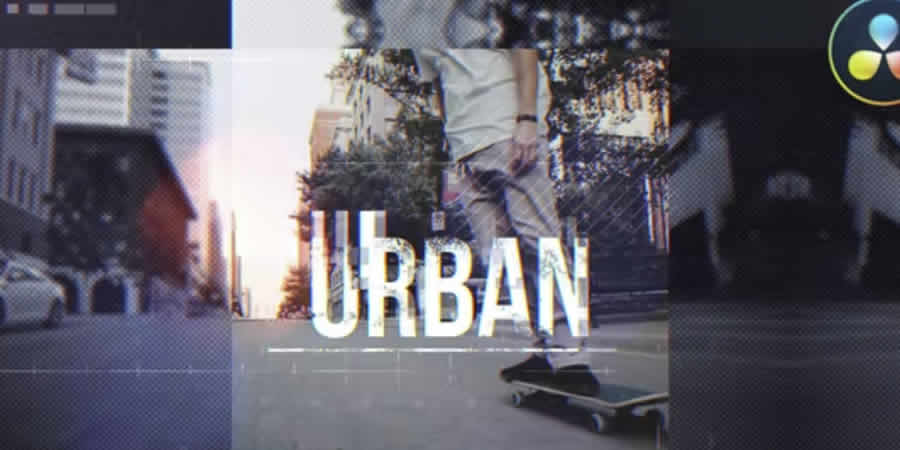
Urban Opener Template
This video opener template has a bold design and energetic feel, perfect for a sports or action video. The customizable layout allows you to add your own text and footage.
Dynamic 3D White Logo Template for DaVinci Resolve
Free to Download
A dynamic logo video opener like this is an incredible way to introduce your brand. It places your logo front and center, capturing your audience’s attention.
Intro Templates for DaVinci Resolve
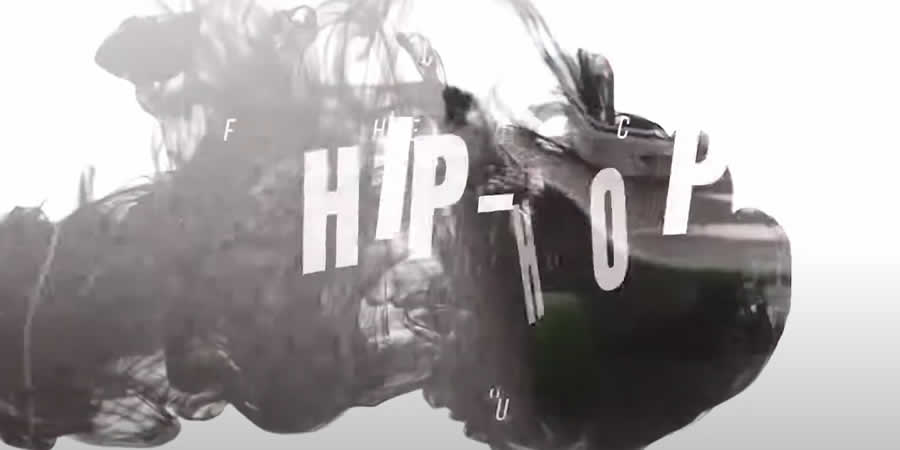
Hip Hop Intro DaVinci Resolve Template
Free to Download
With seamless animations and a hip-hop flair, this free DaVinci Resolve template adds a vibrant feel to your video projects. It is perfect for music videos, vlogs, and other modern-edged content.
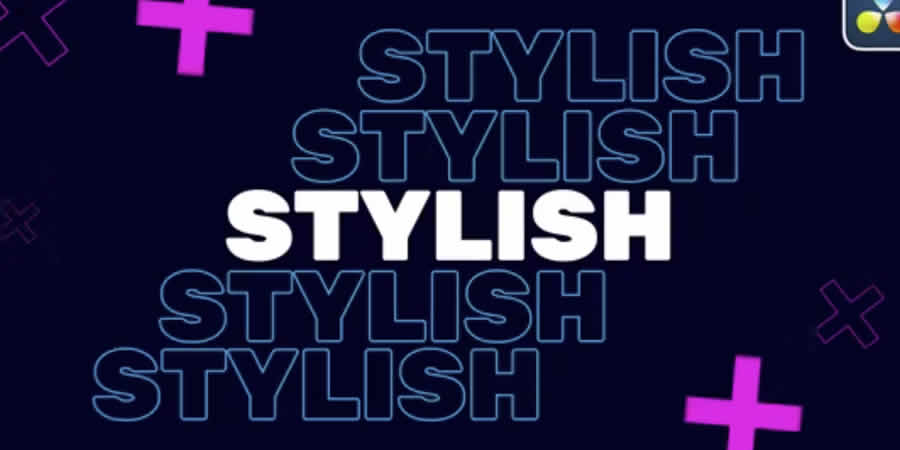
Stylish Typography Intro Template
Do you need a bold, colorful text intro? You’ve found the perfect one here. It features a funky, bright design that’s easy to customize.
Lower Thirds Templates for DaVinci Resolve
These lower thirds templates let you add informative text overlays, such as names and titles, elegantly positioned at the bottom of the screen.
Thin Border Lower Third Template for DaVinci Resolve
Free to Download
With a thin border, this lower thirds template keeps your video content clear. It’s an excellent choice if you need a subtle text overlay that won’t distract your audience.
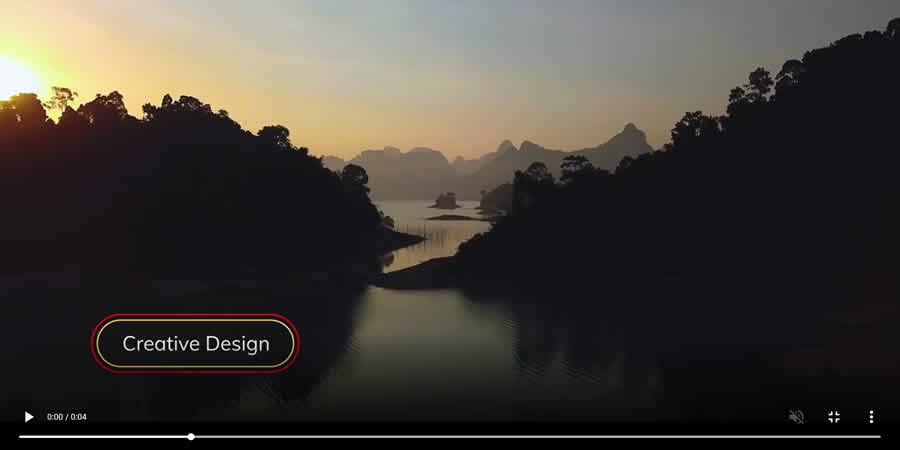
Titles & Lower Thirds DaVinci Resolve Pack
When creating a video in DaVinci Resolve, an elegant, unified theme is good practice. This pack includes many design options with a similar aesthetic.
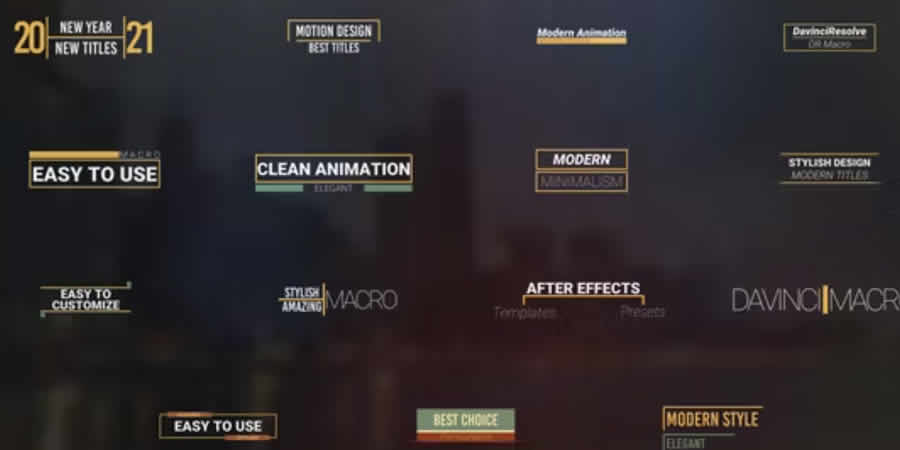
Lower Thirds Template
With 16 options, this template makes adding text to your videos easy. Customize the text and color elements to make the design your own.
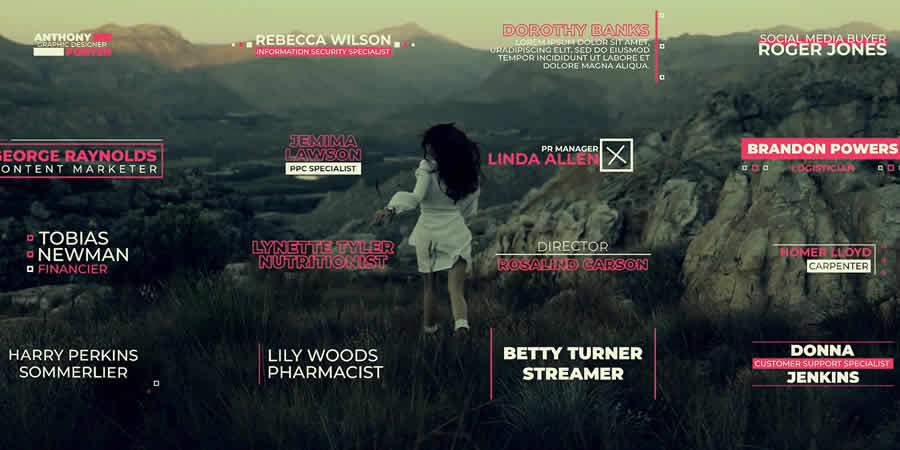
Elegant Lower Thirds for DaVinci Resolve
With cinematic animation and bold text, your audience will notice these DaVinci Resolve lower thirds. This template is in 4K resolution, making the titles crisp and sharp on the best displays.
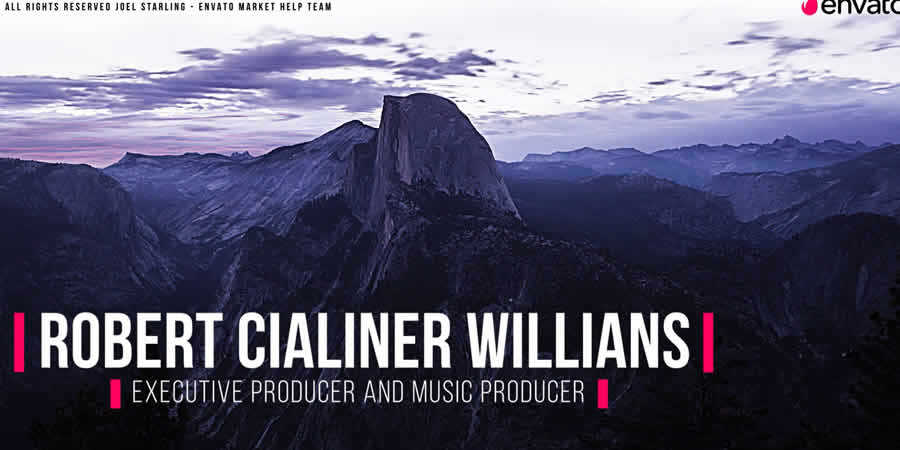
Progress Radial Lower Third Template for DaVinci Resolve Template
Free to Download
Radial animations are eye-catching text overlays for any video. Add one of your own here – all you have to do is drop in your own text, and you’re all set.
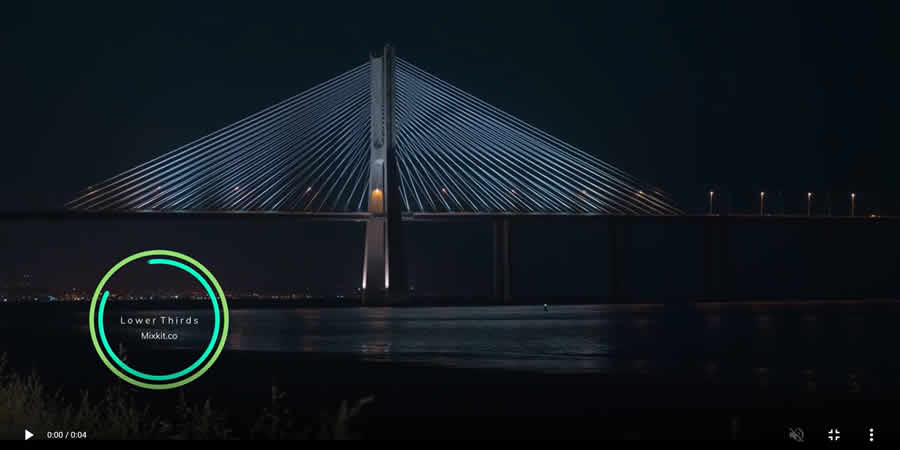
Subscribe Button With Mouse for DaVinci Resolve
Free to Download
When sharing videos, the goal is often to encourage viewers to return for more. With this template, you can add a ‘subscribe’ button to your videos to encourage engagement.

Simple Dot Callout Template for DaVinci Resolve
Free to Download
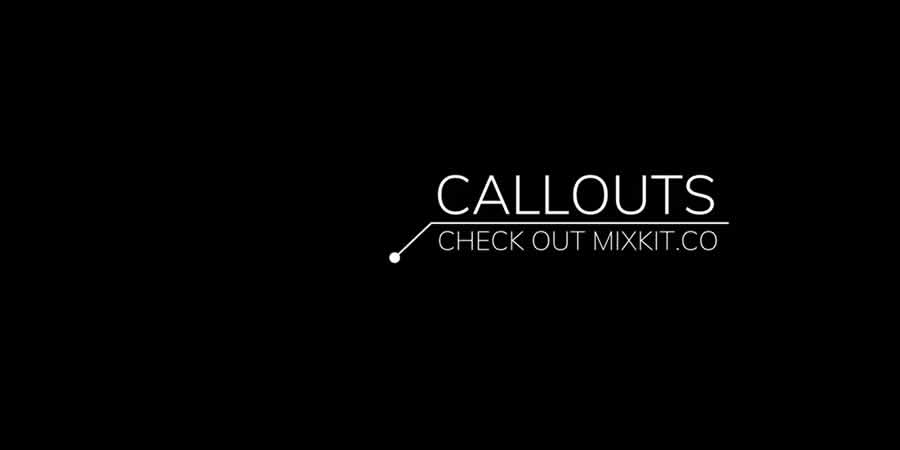
Dot callouts help you draw attention to key details in your video. This template allows you to add them anywhere and uses stylish, crisp typography.
Titles Templates for DaVinci Resolve
These DaVinci Resolve title templates offer creative text solutions for your videos. With these templates, you can create stunning titles that make your video’s typography stylish and attention-grabbing.
DaVinci Resolve Title Templates
Free to Download
These beautiful title overlays won’t distract viewers from your video content. They’re studio-grade methods for introducing the work you share in your projects, and audiences will love them.
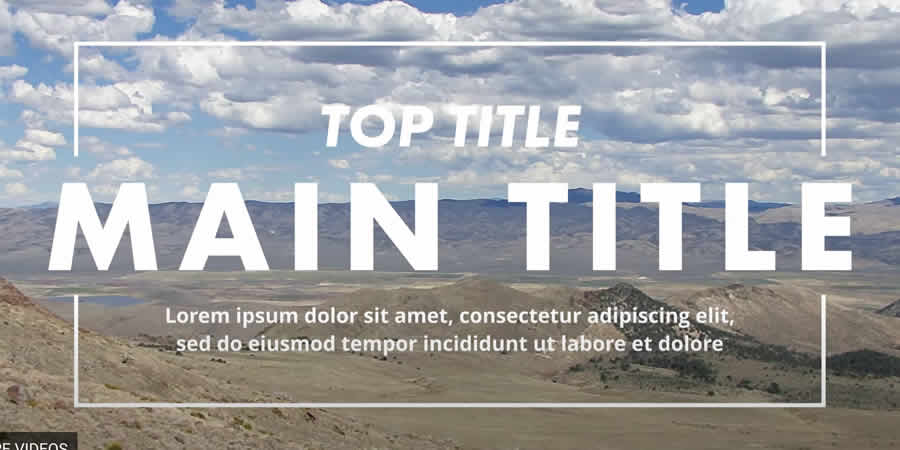
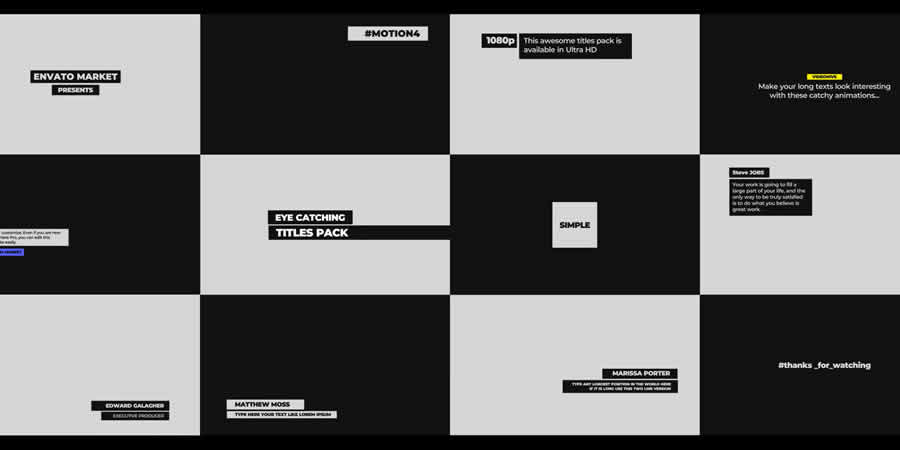
Catchy Title Templates for DaVinci Resolve
Keep in mind that the goal of titles is to capture attention and add context. These titles do just that, and they’re simple and easy to use.
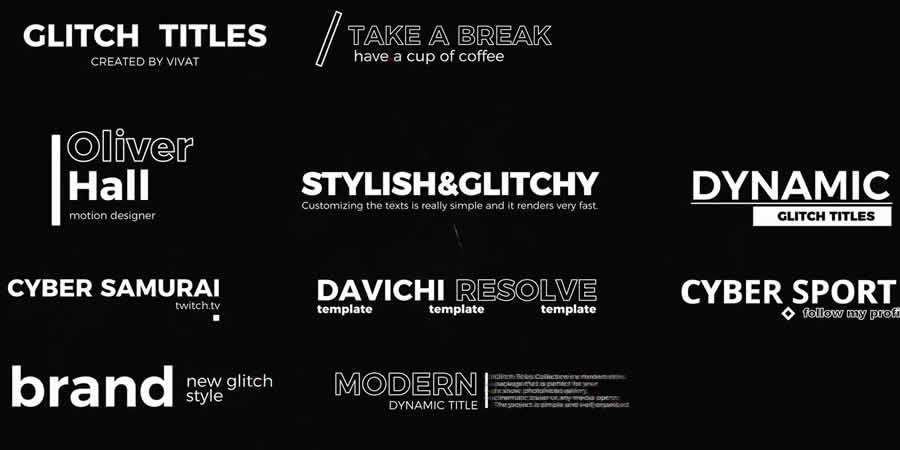
Modern Glitch Titles Templates
Glitch titles are funky and modern, and you’ll often find them in sports and action videos. This title pack, filled with unique designs, allows you to use them in your own work.
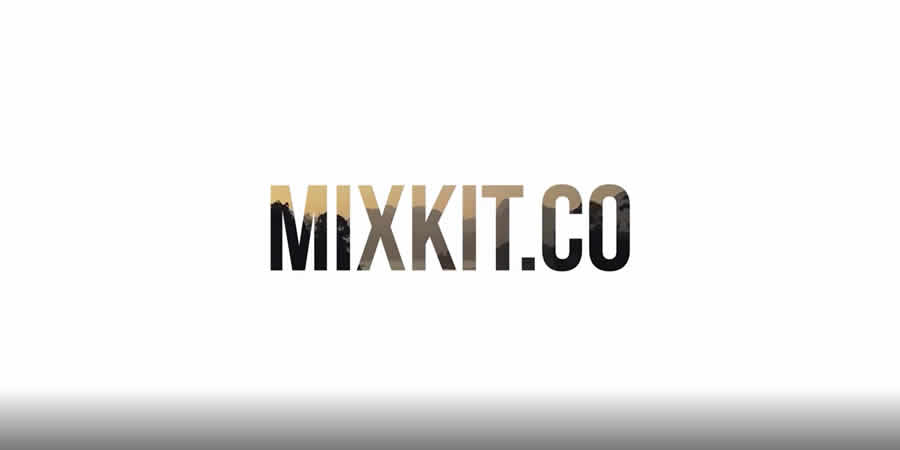
Simple Video Mask Title for DaVinci Resolve Template
Free to Download
Text masks allow you to display titles even when viewing your underlying video content. This is an elegant option for adding text masking to your next video.
Special Effect Templates for DaVinci Resolve
These special effect templates allow you to add cinematic magic to your videos. They offer pre-designed visual effects, like explosions, transitions, and color grading.
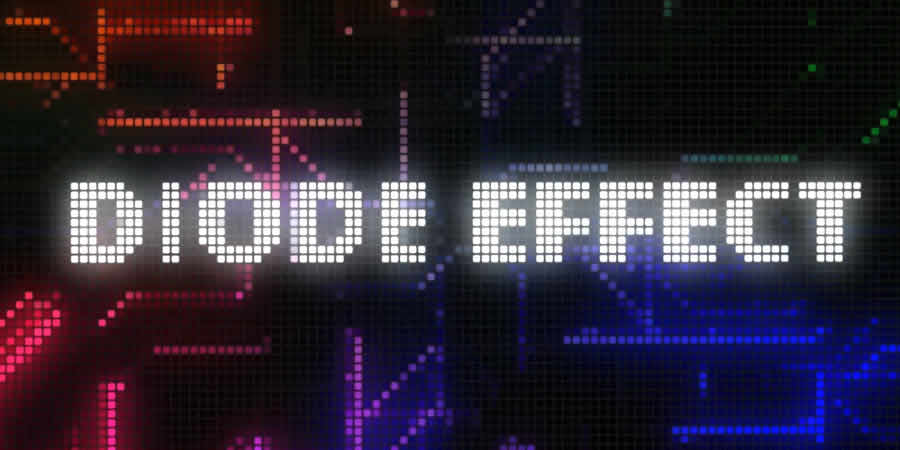
Diode Screen Effect for DaVinci Resolve
Diode effects like these will add a funky, glitchy effect to your next video project. You can add them to your footage without needing advanced design skills.
Magic Animated Letterbox Tool
Free to Download
This animated letterbox template is a fun way to make your video stand out. The creative effects inside are easy to add, modify, and work with.
Realistic Hits & Rumbles Effects for DaVinci Resolve
Dramatic effects like these can add energy to any action video you produce. Try them if you need to ramp up the intensity of a film you’re working on.

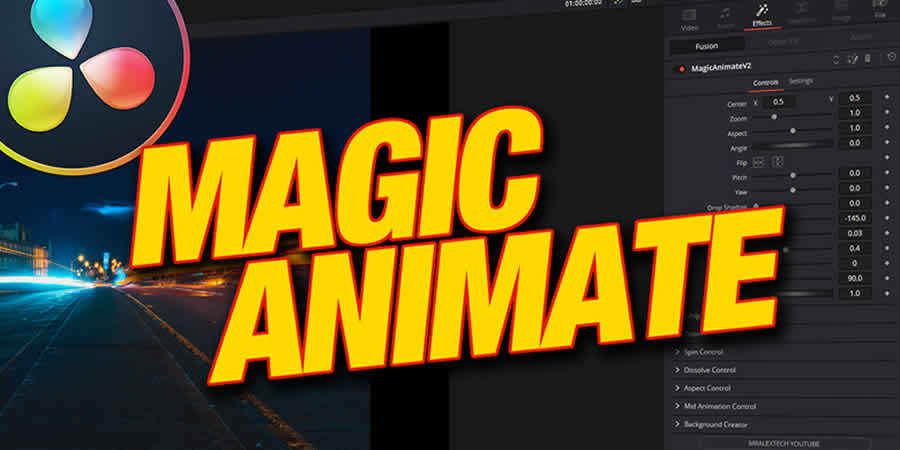
MagicAnimateV2
Free to Download
Animation helps transform flat videos into extraordinary works of art. The MagicAnimate toolkit allows you to add quick animations throughout your video files in DaVinci Resolve.
Hallucination Effects for DaVinci Resolve
Supernatural effects are popular across many film genres. Add them to your own work with this DaVinci Resolve template pack. The effects are powerful and yet easy to customize.

YouTube Subscribe Button DaVinci Resolve Template
Free to Download
This free DaVinci Resolve template simplifies encouraging viewers to subscribe to your YouTube channel. The template includes an easy-to-customize button that prompts users to subscribe to your channel.
MagicGradient Tool for DaVinci Resolve
Free to Download
Gradient backgrounds add a touch of 3D styling to any video. This simple DaVinci Resolve toolkit helps you add these backdrops quickly.

Ultimate Seamless Transitions for DaVinci Resolve
Free to Download
Transitions keep your video flowing, moving seamlessly from scene to scene. This powerful transition toolkit allows you to add transitions to any video clip in DaVinci Resolve.
Transition Templates for DaVinci Resolve
These DaVinci Resolve transition templates let you create seamless shifts between scenes. Add polished transitions like fades, cuts, and wipes to improve your video’s flow.
Vertical Split Frame Template for DaVinci Resolve
Free to Download
Vertical split frames like this one move video clips up and down onscreen. Using this template, you can add these eye-catching transitions to your own projects.
120+ Flat Transitions for DaVinci Resolve
This collection includes over 120 transitions, all designed with a flat aesthetic. They work perfectly without ever being distracting or disruptive.
mTransition Luma Matte Transition for DVR
Free to Download
These Luma transitions add stunning motion effects to any video in DaVinci Resolve. In no time, you’ll be creating video productions that look right at home on a cinema’s big screen.
20 Curtain Transitions for DvR
Curtain transitions create a clear break between sections of a video. With this flexible DaVinci Resolve template, you can add these dramatic, stylish, and easy-to-use transitions to your videos.
Motion Blur Swipe Transition DaVinci Resolve Template
Free to Download
Motion blur transitions are otherworldly and surreal ways to push videos and films forward. Add them here, with several options and styles to choose from.
Distort & Twist Transition DaVinci Resolve Template
Free to Download
Do you need video transitions with a twist? Here’s the perfect free template, loaded with the ability to add spiral transition animations to any video.
Instagram Story Templates for DaVinci Resolve
These Instagram Story templates let you create engaging, on-brand short videos in DaVinci Resolve. With these templates, you can design dynamic stories, add text overlays, and incorporate animations.
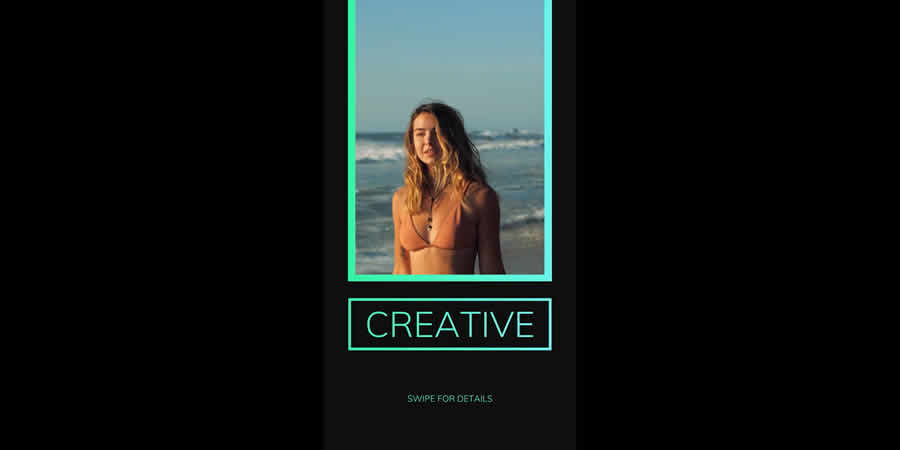
Video Drop Story DaVinci Resolve Template
Free to Download
Green templates like this are tailored for your social media. Drop in your content, and you’ll soon have stunning shareable videos for Instagram and other social media platforms.
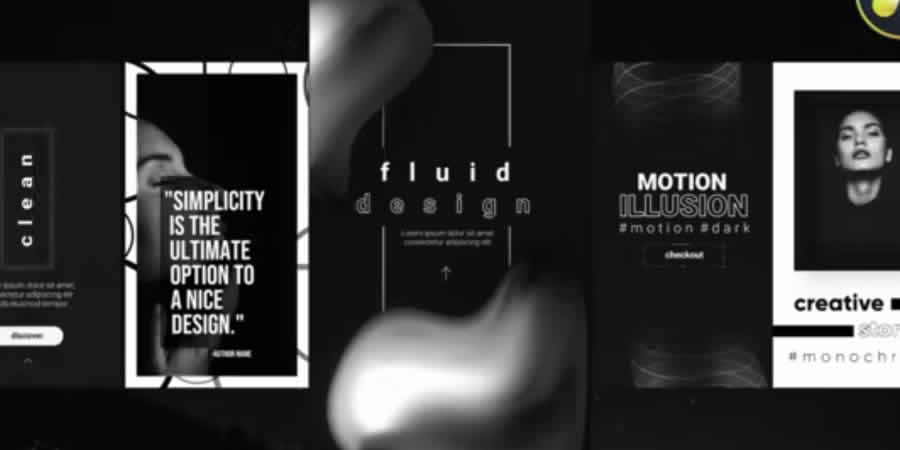
Monochrome Instagram Stories Template
These monochrome effects will help your Instagram content stand out. That’s more important than ever in the crowded social media arena, where you need to differentiate yourself to drive engagement.
Gradient Shape Animation Story DaVinci Resolve Template
Free to Download
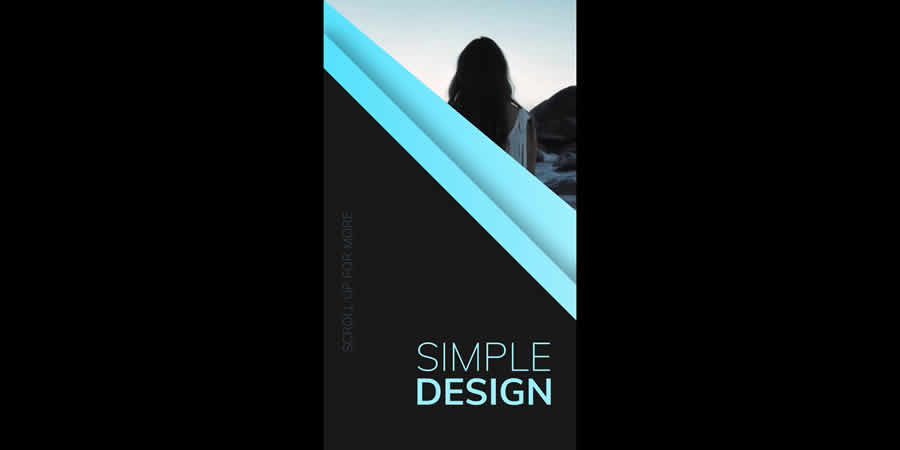
These gradient shapes provide beautiful overlays to your Instagram story content. They’re designed for smaller mobile screens, where every bit of space counts.
How to Install DaVinci Resolve Templates
To install a new template in DaVinci Resolve, follow these simple steps:
- Download the Template: Find and download the template you want to install.
- Locate the Templates Folder: Navigate to the appropriate folder where DaVinci Resolve stores its templates.
- Install the Template: Once you’re in the templates folder, create a new subfolder with a descriptive name for your template. Copy the downloaded template files (usually
.settingor.settingsfiles) into this new subfolder. - Restart DaVinci Resolve: After placing the template files in the appropriate folder, close and reopen DaVinci Resolve to allow the software to recognize the new templates.
- Access the Template: The newly installed template should now be accessible in DaVinci Resolve’s template library.
- Apply the Template: Drag and drop the template from the library onto your timeline or footage.
- Customize the Template: Edit the parameters as needed to fit your project.
How to Customize a DaVinci Resolve Template
Start with the template on a short test timeline. Check how it responds to your footage before adding it throughout a longer edit.
- Change the text: Select the title or graphic and edit its available controls in the Inspector. Check longer names at the beginning and end of the animation.
- Replace the media: Add your own clips, photos, or logo where the template provides placeholders.
- Match the colors: Adjust the graphic to work with your footage and the rest of the video.
- Check the timing: Trim the clip or adjust its animation controls where available. A transition may need extra frames on both sides of the cut.
- Open Fusion when needed: If the Inspector does not expose a setting, inspect the template’s nodes and change only the elements you understand.
- Watch it in context: Play the sequence with its neighboring shots and audio. A graphic that looks good on its own may interrupt the rhythm of the edit.
Tips for Improving Performance
Animated titles and Fusion effects can slow playback, especially when several appear alongside high-resolution footage. These adjustments can make the editing process more comfortable:
- Lower the Timeline Proxy Resolution while editing, then review the result at full resolution before delivery.
- Generate or use proxy media for demanding source footage.
- Set
Playback > Render Cache > Smartand allow time for complex sections to cache. - Keep the cache on a fast drive with enough available space.
- Temporarily bypass demanding effects while working on the cut, then turn them back on for review.
- Test one copy of a complex template before placing it repeatedly across the timeline.
Final Recommendations
DaVinci Resolve templates are most useful when they fit the edit you already have in mind. A lower third should make a name easy to read. A transition should connect two shots without calling too much attention to itself. An opener has a little more room to establish a visual style, but it still needs to suit the pace of the video that follows.
Try a template with your own footage before committing to it. Check how the colors sit against your shots, whether the text remains readable, and whether the animation gives viewers enough time to take in the information. If the timing feels wrong, a different template may serve the project better than extensive changes to the original.
Pay close attention to the download terms. Check version requirements, fonts, extra effects, and the license before using a template in client work. The collection includes free downloads alongside paid options, so check the label and destination for each item.
Once you have a template you like, save a version with your usual colors and type choices. This gives a series of videos a consistent look while leaving room to adjust each edit to its subject.
Top
